Global Variables (Environments)
Global Variables are workspace-level key-value pairs that persist across test runs and across test cases. They are organized into Environments, allowing you to maintain separate sets of values for different deployment targets (e.g., Default, Staging, Production) and switch between them at execution time — without changing a single test step.
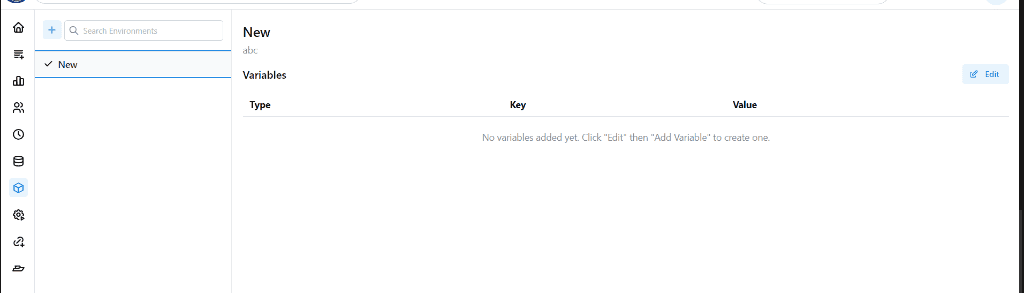
Environments vs. Variables
An Environment is a named container for a group of related variables. A Variable is a single key-value pair inside an environment.
For example, your Staging environment might contain:
| Key | Value | Type |
|---|---|---|
baseUrl | https://staging.myapp.com | config |
adminEmail | qa@myapp.com | config |
adminPassword | •••••••• | secret |
Your Production environment would hold the same keys with different values. When you execute a test, you select which environment to run against — Robonito swaps all {{baseUrl}}, {{adminEmail}}, and {{adminPassword}} references automatically.
Accessing Environment Variables
- Click the Environment Manager icon in the left sidebar (gear icon).
- Select User Settings → Environment Variables, or navigate directly from the Environment Manager.
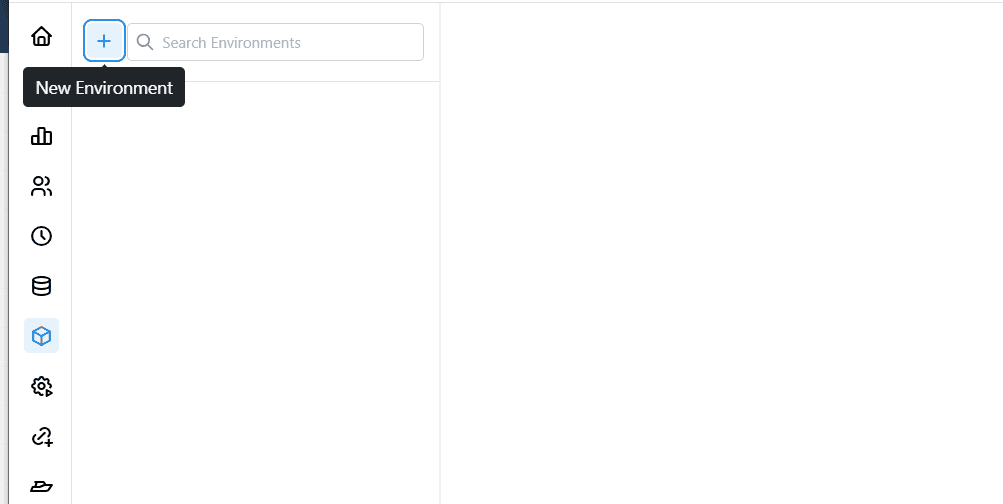
Creating an Environment
If you only need one set of values (common for most projects), the Default environment is automatically created for every workspace. To add additional environments:
- Click + New Environment.
- Enter a name (e.g.,
Staging). - Click Create.
Adding Variables to an Environment
- Select the target environment from the dropdown.
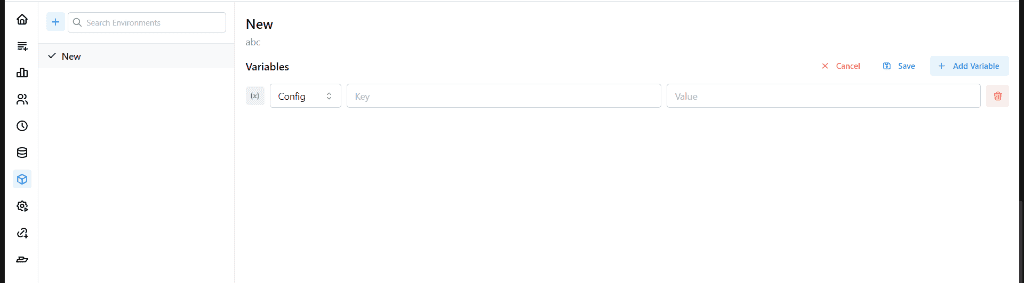
- Click + Add Variable.
- Fill in:
- Key — the variable name you will reference in tests (e.g.,
baseUrl) - Value — the actual value for this environment
- Type —
config(visible) orsecret(masked, use for passwords/tokens)
- Key — the variable name you will reference in tests (e.g.,
- Click Save.
Important: Secret variable values are masked immediately after saving and cannot be retrieved in plaintext from the UI. Store them somewhere safe before saving.
Using Global Variables in Tests
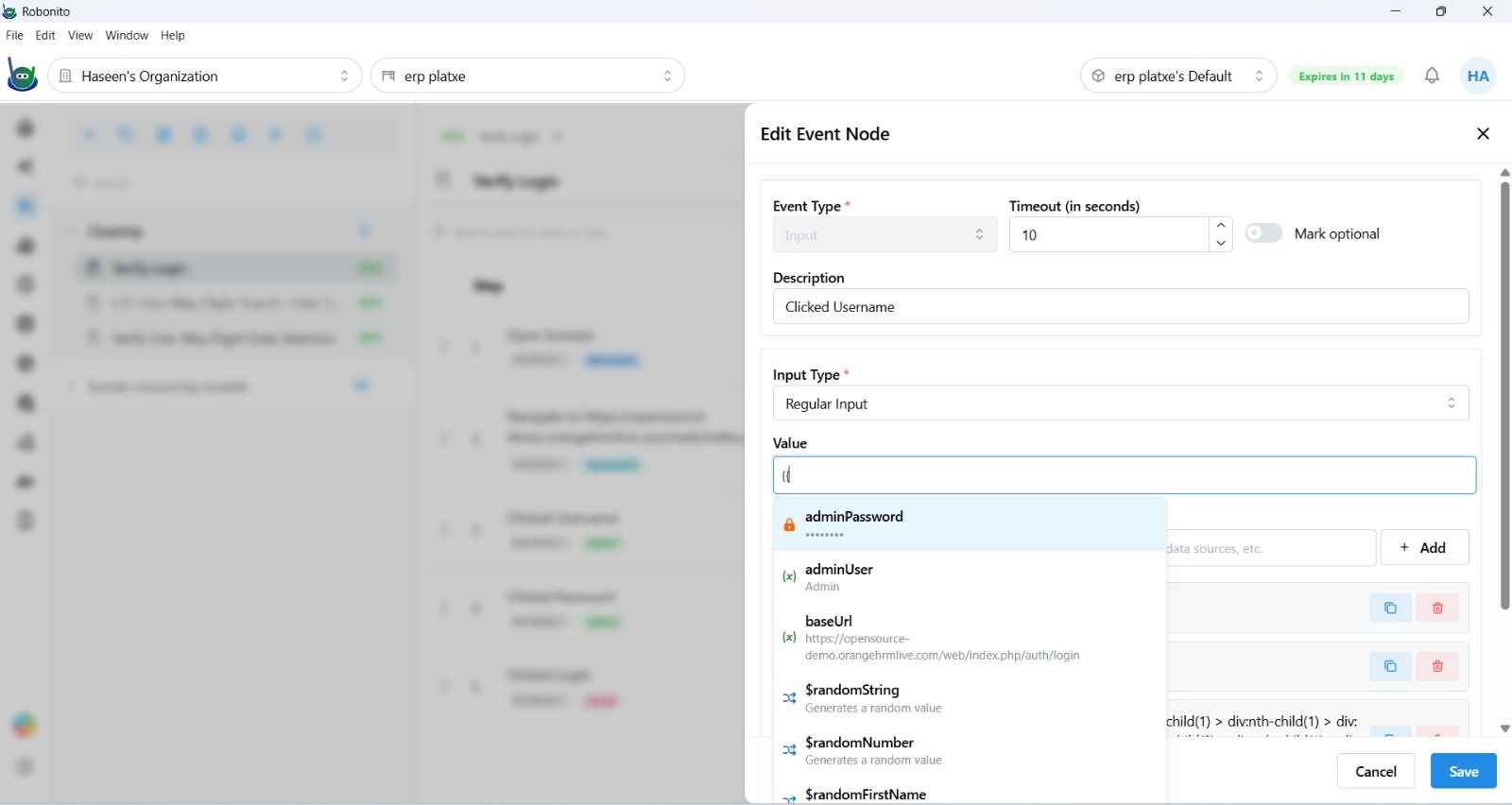
Reference any global variable in test step inputs, URLs, headers, or assertion values using double curly braces:
{{baseUrl}}/api/v1/users
{{adminEmail}}
{{authToken}}
Robonito resolves these at runtime against the environment you selected in the Execution Configuration. If a variable key is not found in the active environment, the placeholder is left as-is and the step may fail.
Selecting an Environment at Execution Time
When you click Execute on any test case or suite, the Execution Configuration dialog lets you choose the target Environment. The selected environment's variables are injected for that run only — switching environments does not alter any test steps permanently.
Updating a Global Variable Mid-Test
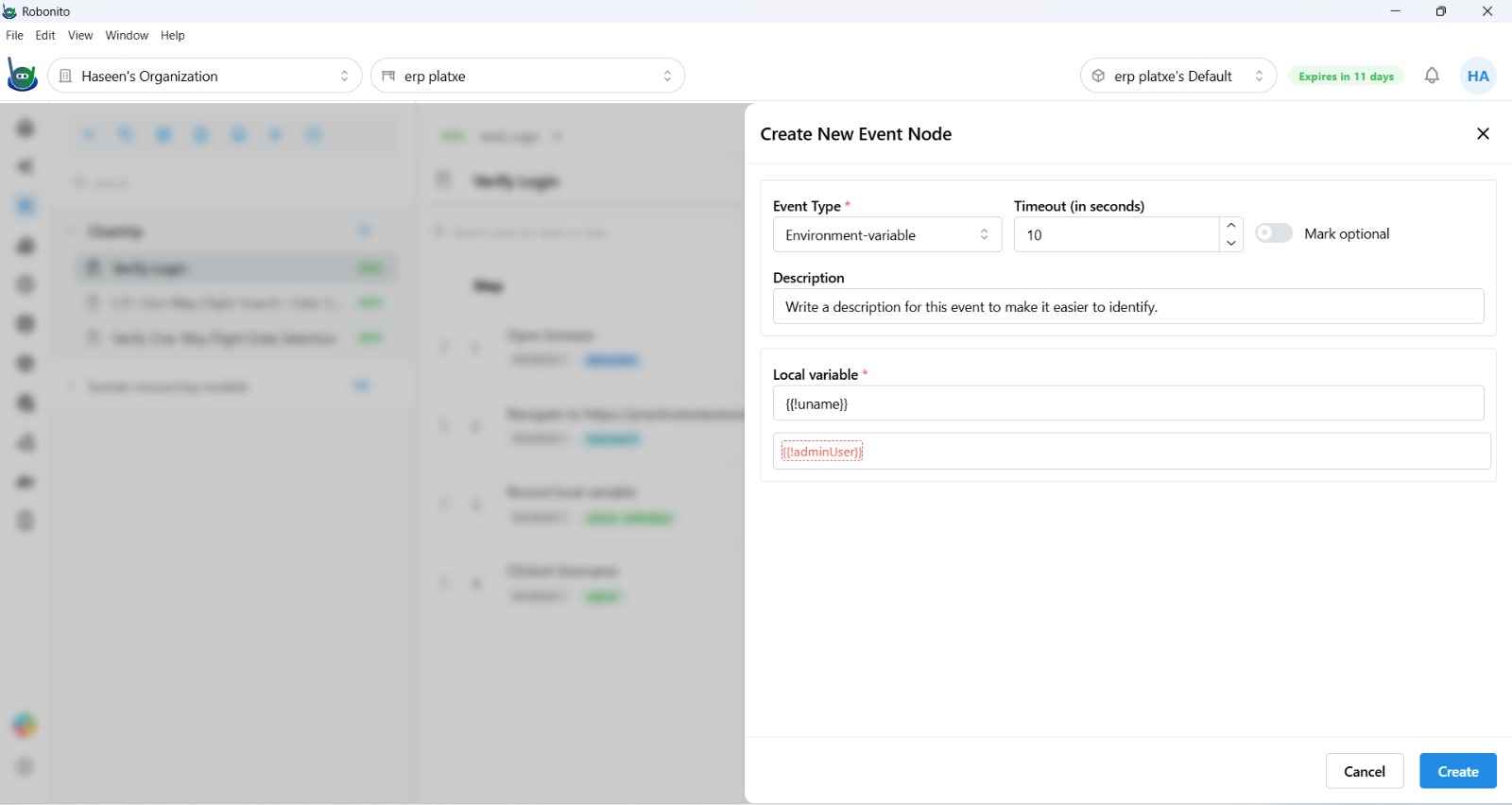
You can update a global variable's value during a test run using the Environment Variable step. This is useful for propagating a dynamically-generated value (like a login token) to later tests in the same suite execution.
How it works
- Add a Local Variable step to capture the value from the UI or API response.
- Immediately after, insert an Environment Variable step.
- Set the Local variable field to the previously captured value (e.g.,
{{!authToken}}). - Set the Environment variable field to the global key you want to update (e.g.,
authToken).
When the test runs, the Environment Variable step writes the captured live value into authToken for the remainder of the suite execution.
Secret Variables
Secret variables are designed for sensitive values that should never appear in logs or the UI:
- The value is masked (
••••••••) immediately after saving. - It is never included in execution reports or exported logs.
- To update a secret, type a new value and save — the old value is replaced.
Use secret variables for: passwords, API keys, bearer tokens, private keys, and any PII.
Tips
- Keep variable keys consistent across environments (same key name, different values). Tests reference keys, not values directly.
- If a test fails with
{{baseUrl}}appearing literally in a URL, it means no matching variable was found in the active environment — check for typos in the key name. - You can mix global variables, local variables, data source references, and random value generators in the same input field.