Recording a Web Test in Robonito
Recording is the fastest, most effective way to build a Web (UI) test case in Robonito. Instead of writing complex scripts, you simply interact with your application as a real user would. Robonito captures these interactions instantly and converts them into structured, automated test steps.
This guide explores the recording workflow, from launching the session to utilizing advanced mid-recording automation tools.
1. Launching the Recorder
To begin recording your automation flow:
- Open an existing Web Test Case or create a new one.
- Click the Record button located at the top of the interface.

- The Configure Launch Options dialog will appear, allowing you to fine-tune the recording environment.
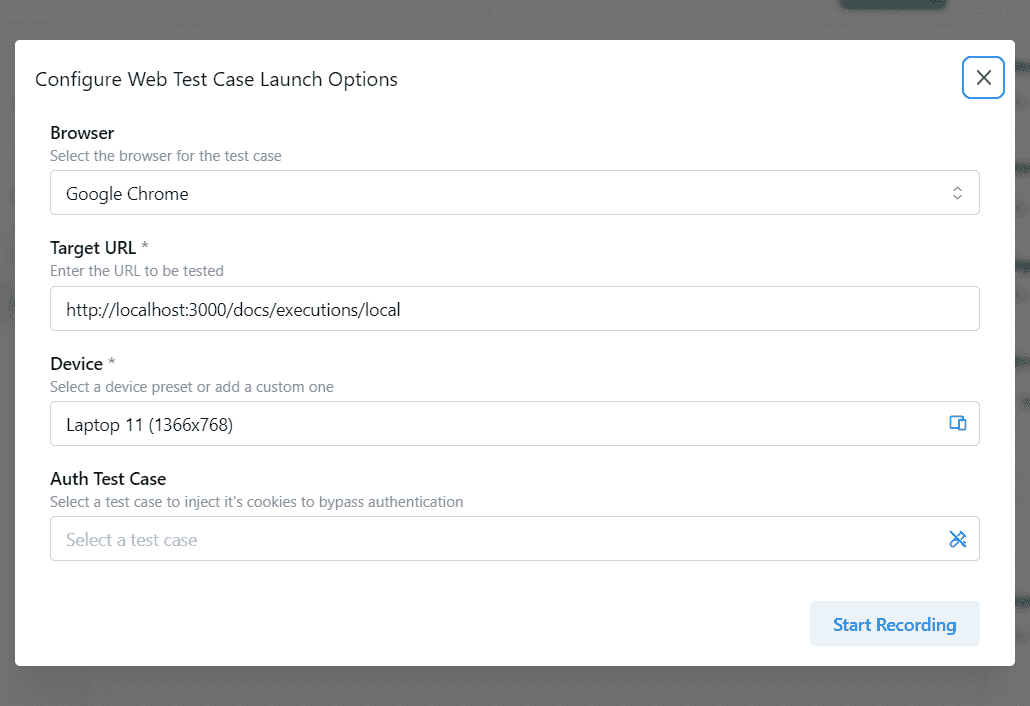
Launch Options Configuration
Before the recording starts, ensure your environment is set up correctly:
- Browser: Select the target browser (e.g., Google Chrome).
- Target URL: Verify the starting URL. The browser will instantly navigate here.
- Device Viewport: Choose the correct screen resolution (e.g.,
Laptop 11 (1366 × 768)). - Auth Test Case (Optional): Attach an authentication sequence to automatically inject valid session cookies, allowing you to bypass login screens and record authenticated flows immediately.
Once verified, click Start Recording.
2. The Recording Session
When the recording begins, Robonito takes control:
- A pristine browser window launches using your specified device configuration.
- The browser navigates to the Target URL.
- Robonito immediately starts "listening" to your actions.
What Actions Are Captured?
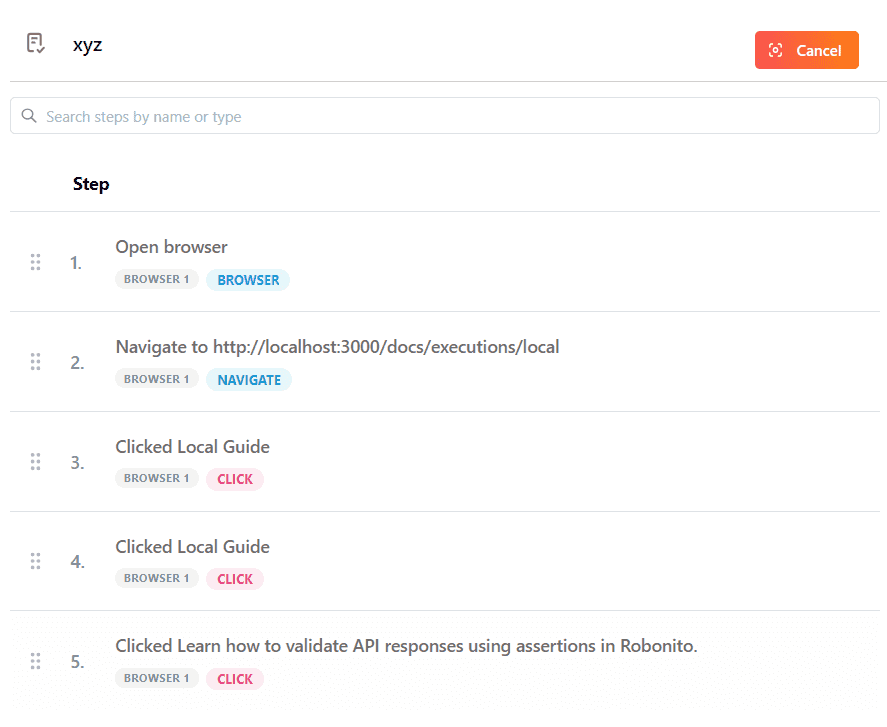
As you navigate the app naturally, Robonito automatically records:
- Mouse Clicks & Double Clicks (Buttons, links, dropdowns)
- Text Inputs & Form Submissions
- Page Navigations (URL changes)
- Hover Actions (Revealing tooltips or nested menus)
Each interaction is instantly converted into a modular, readable test step within your Robonito test case.
3. Advanced Automation Tools
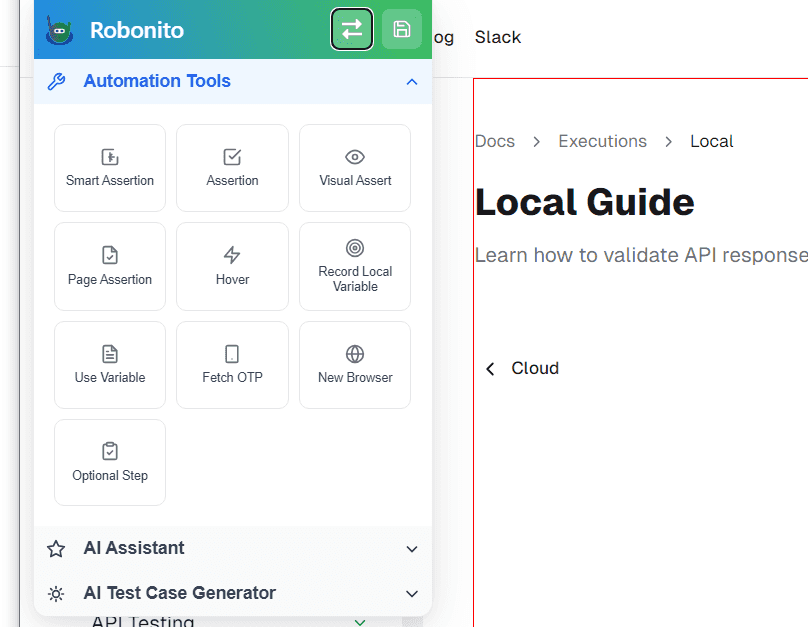
While the recording session is active, Robonito overlays a powerful suite of Automation Tools to help you build resilient tests without stopping the flow.
Validation Tools
- Smart Assertion: Validate UI states using plain English. Simply describe what should be explicitly true about an element, and Robonito's AI handles the underlying validation logic automatically. Learn more.
- Standard Assertions: Manually add assertions to verify text content, element visibility, or attributes mid-recording. Learn more.
- Page Assertion: Validate that the browser has navigated to the exact correct URL and that the entire page has loaded successfully. Learn more.
- Visual Assert: Take a snapshot of a specific element or the entire page to detect pixel-level visual layout regressions in future runs.
Interaction & Logic Tools
- Hover: Explicitly record a mouse-hover event over dynamic elements like CSS menus.
- Record Local Variable: Extract text or attributes straight from the UI and save them as dynamic variables (e.g., capturing a generated Order ID).
- Use Variable: Inject previously saved variables directly into input fields during the recording.
- Fetch OTP: Intercept and input One-Time Passwords automatically to automate 2FA flows seamlessly.
- New Browser: Spawns a secondary browser window mid-test snippet. Extremely useful for testing multi-user collaboration tools (e.g., User A sends a message in Browser 1; User B receives it in Browser 2).
- Optional Step: Flag a specific action as non-critical. If the step fails during execution, the test will log a warning but continue running.
4. Finalizing the Recording
Once you have completed your desired user journey:
- Stop the recording session manually via the Robonito recording toolbar.
- Robonito will finalize all captured actions, saving them dynamically to the test case sequence.
- Your test case is now complete! You can immediately execute it, or fine-tune it by reordering, editing, or deleting specific steps from the Robonito dashboard.
Why Use the Recorder?
Building tests via the Robonito Recorder offers massive advantages:
- Zero Coding Required: Generate complex automation workflows simply by clicking.
- Extreme Accuracy: Actions capture exact DOM selectors used during the real interaction.
- Rapid Maintenance: Easily append new steps or delete outdated ones without rewriting entire scripts.
- AI-Enhanced: Mid-recording smart assertions make validations bulletproof against minor UI changes.
Advanced Recording Tools
Fetch OTP
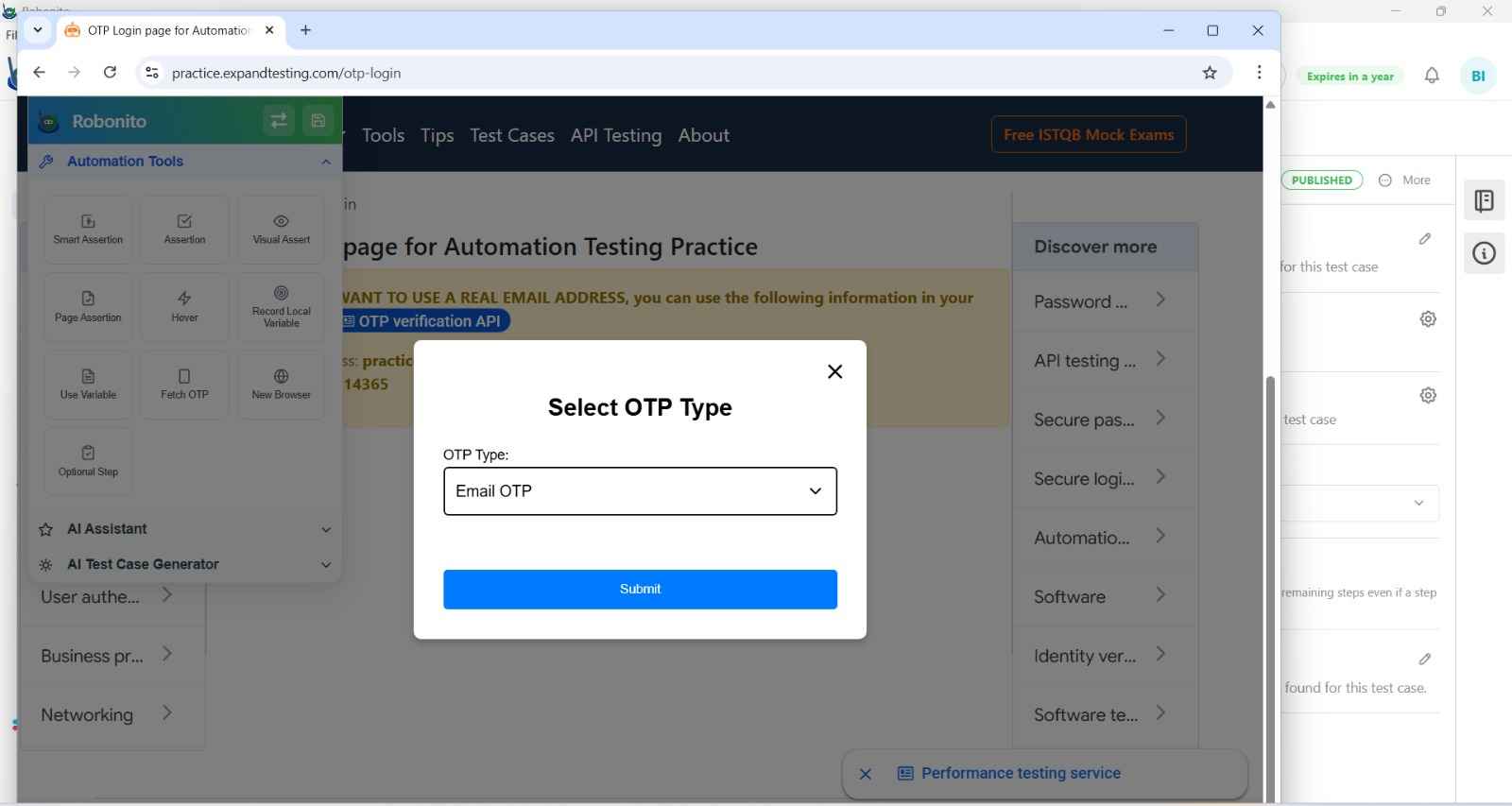
During recording, click Fetch OTP to read a one-time password from your email inbox. Robonito connects to the configured Email (IMAP) integration →, finds the most recent email matching the subject filter you specify, and extracts the OTP code — automatically inserting it into the active input field.
This allows you to record end-to-end flows that include email-based 2FA without manually reading emails.
Requirements: The Email integration → must be configured in your workspace before using Fetch OTP.
Optional Steps
Mark any step as Optional by toggling the Optional flag in the step's options. Optional steps behave like regular steps during execution — but if an optional step fails, execution continues and the failure is not counted toward the test's pass/fail result.
Use optional steps for:
- Cookie consent banners (present on first visit only)
- One-time onboarding dialogs
- "What's new" modals that appear intermittently
- Any step that is expected to fail under certain conditions
To mark a step as optional: open the step editor and toggle Optional Step to On.
Loops
Add a Loop Start and Loop End node pair to repeat a block of steps:
- Add a Loop Start node before the steps you want to repeat.
- Add a Loop End node after the last repeated step.
- Configure the loop condition:
- Iteration — repeat a fixed number of times (set Initial and Final values)
- Element Visible — keep looping while an element is present on screen
- Element Invisible — keep looping until an element disappears
Loops are useful for paginating through search results, processing items in a list, or retrying an action until a condition is met.