AI Studio — Quick Start
This tutorial walks you through your first run: describe a test in plain language, watch the agent execute it on a live browser, and save the generated test case to a suite — no code written.
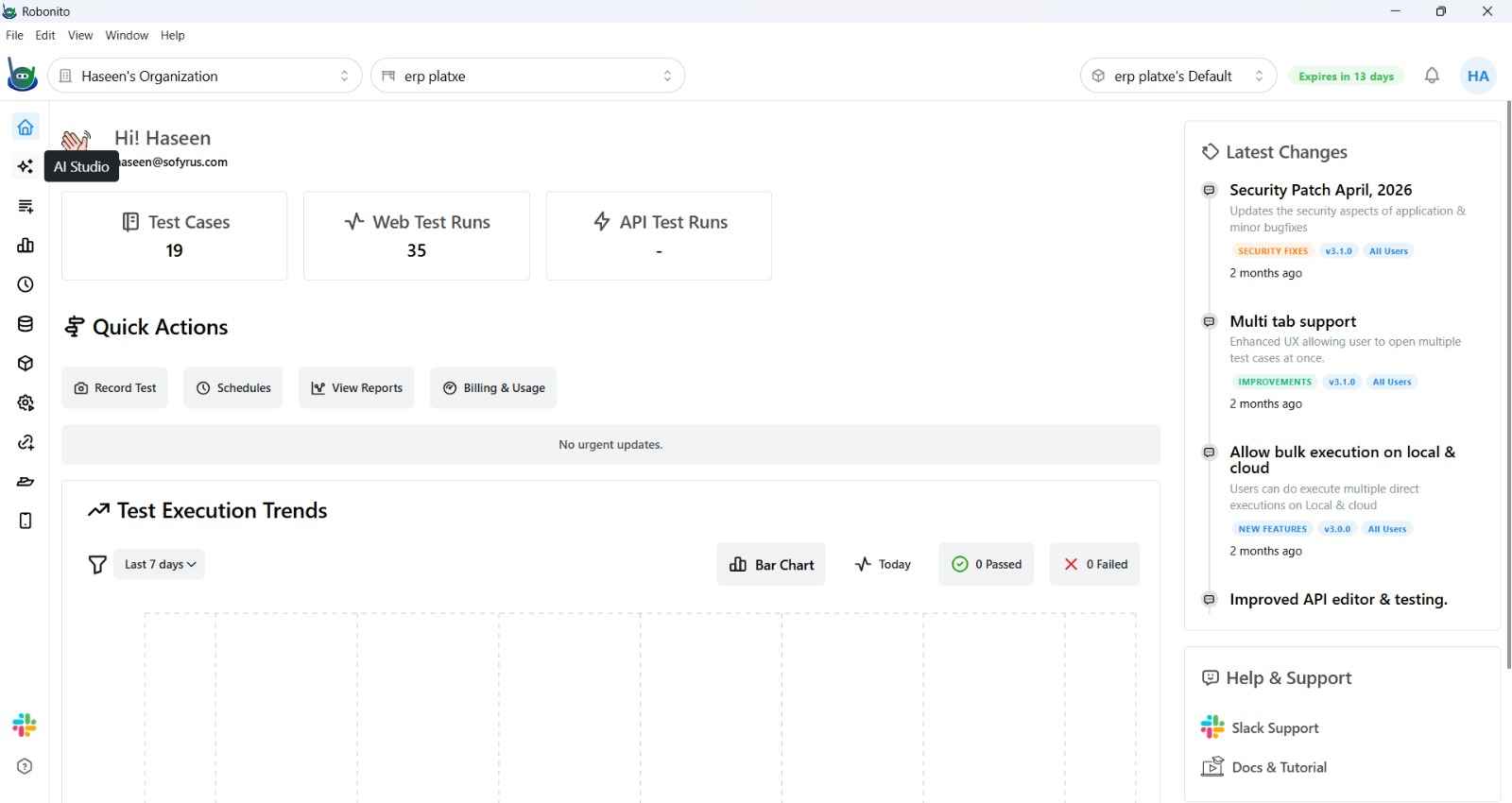
Before you start
- The Robonito desktop app is open and you're signed in.
- You have at least one workspace with a test suite to save into. If you have none yet, ask your workspace administrator — a run with no suite has nowhere to store its results.
- For this tutorial, test a safe demo page so nothing real is touched:
https://www.saucedemo.com(the Sauce Labs demo store, userstandard_user/secret_sauce).
1. Open AI Studio
Click the AI Studio icon (the sparkles icon) in the left sidebar.
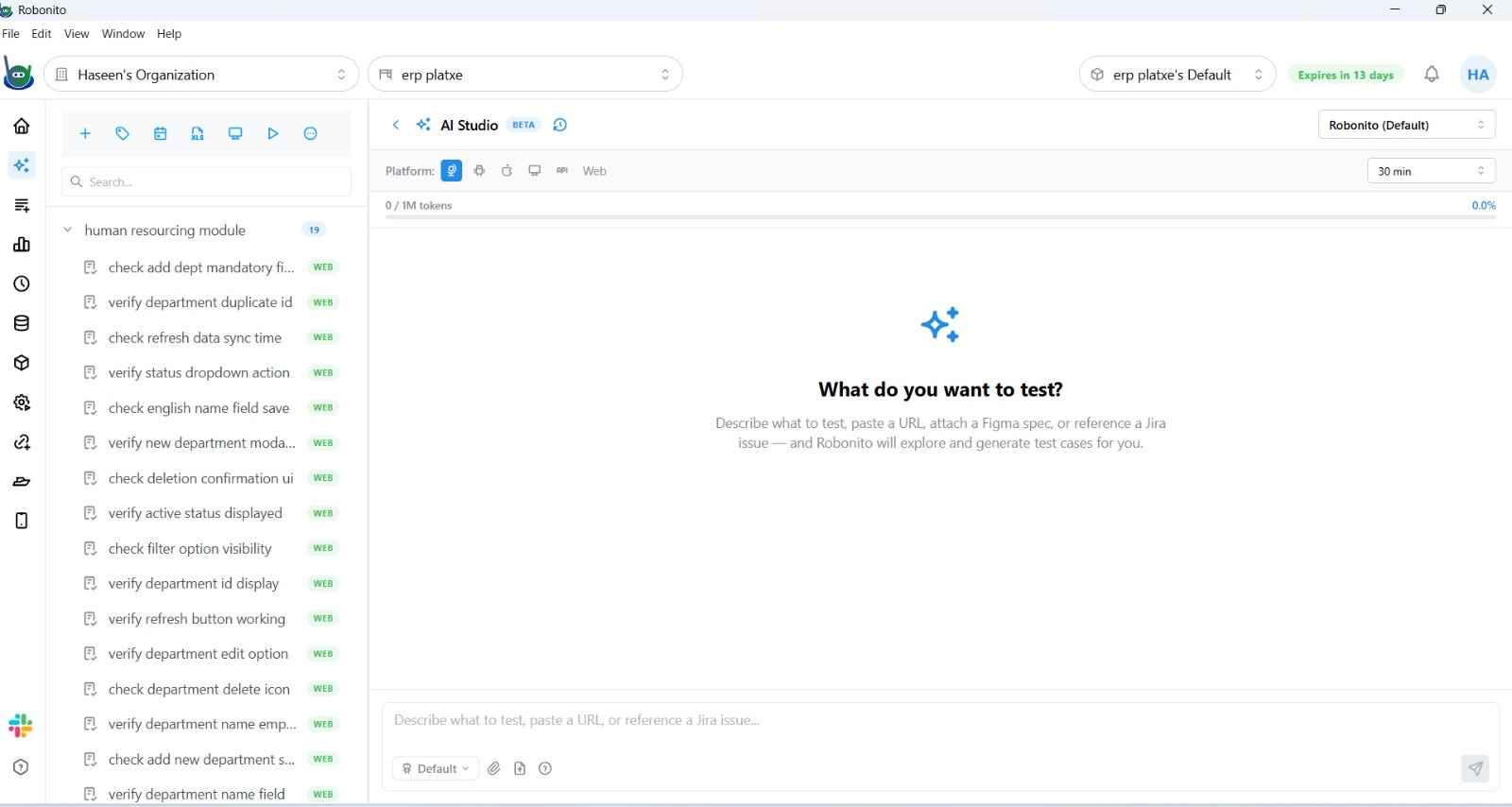
The screen has three panes:
- Left — Workspace: your active suite, its artifacts, and past conversations. Click New chat to start fresh.
- Center — Chat: where you type, and where the agent's output streams in.
- Right — Results: live progress, a browser mirror, and screenshots.
2. Select a platform
At the top of the chat, the platform is set to Web by default (other options: Android, iOS, Desktop). Keep Web for this tutorial.
3. Select a model
The model selector shows the model the agent will run on. The default — Robonito (Default) — is vision-capable and needs no key of your own. Keep it for now; you can switch providers later.
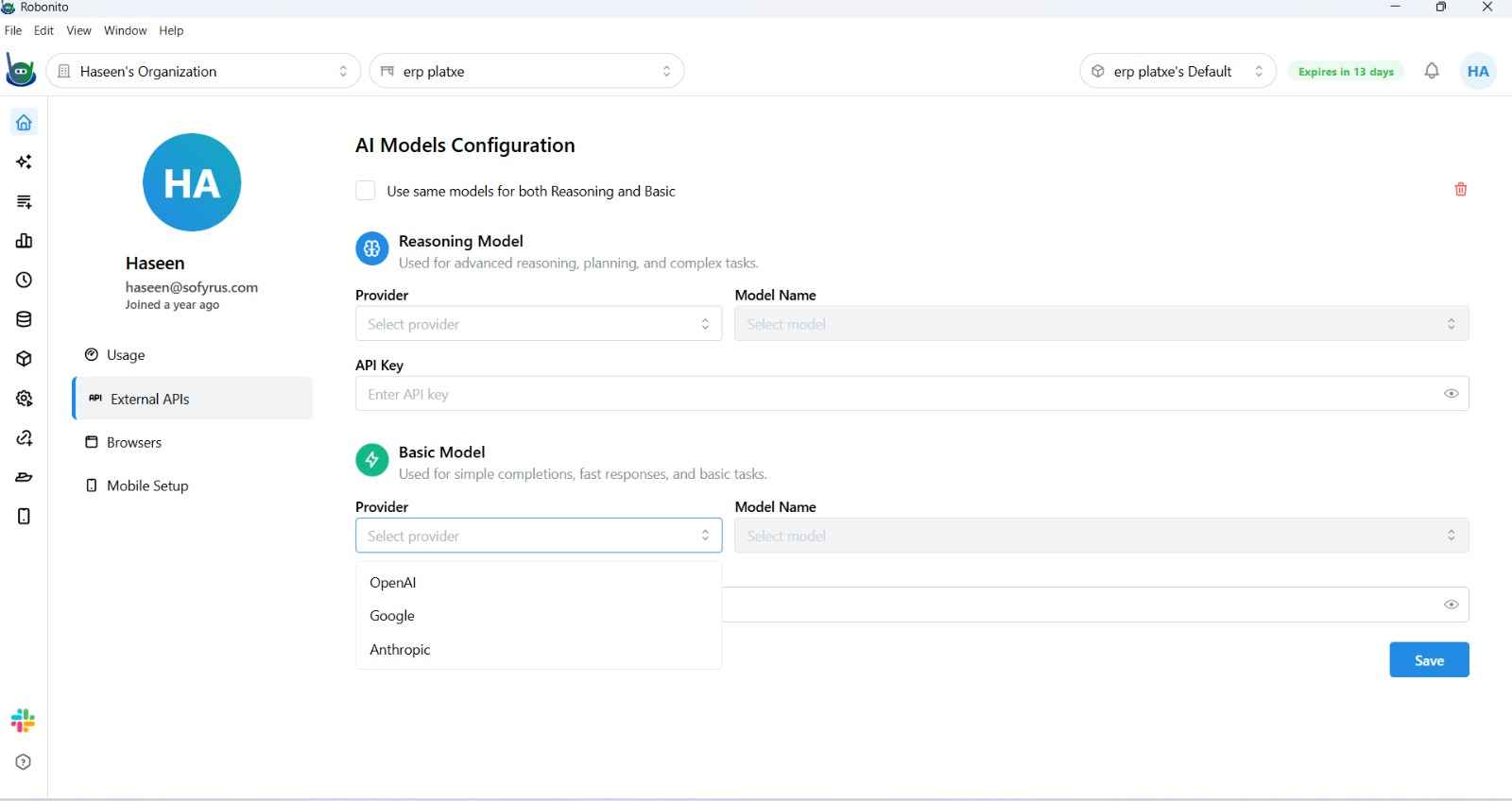
See Configure a provider and model to use Claude, GPT, Gemini, OpenRouter, or a local Ollama model instead.
4. Choose a suite to save into
In the composer strip above the input, select the suite your generated test case should be saved to.
A suite is required to send:
Until you pick a suite, the Send button stays greyed out with a small hint above the input. This is deliberate — it prevents a run that has nowhere to store its results.
5. Describe your goal and send
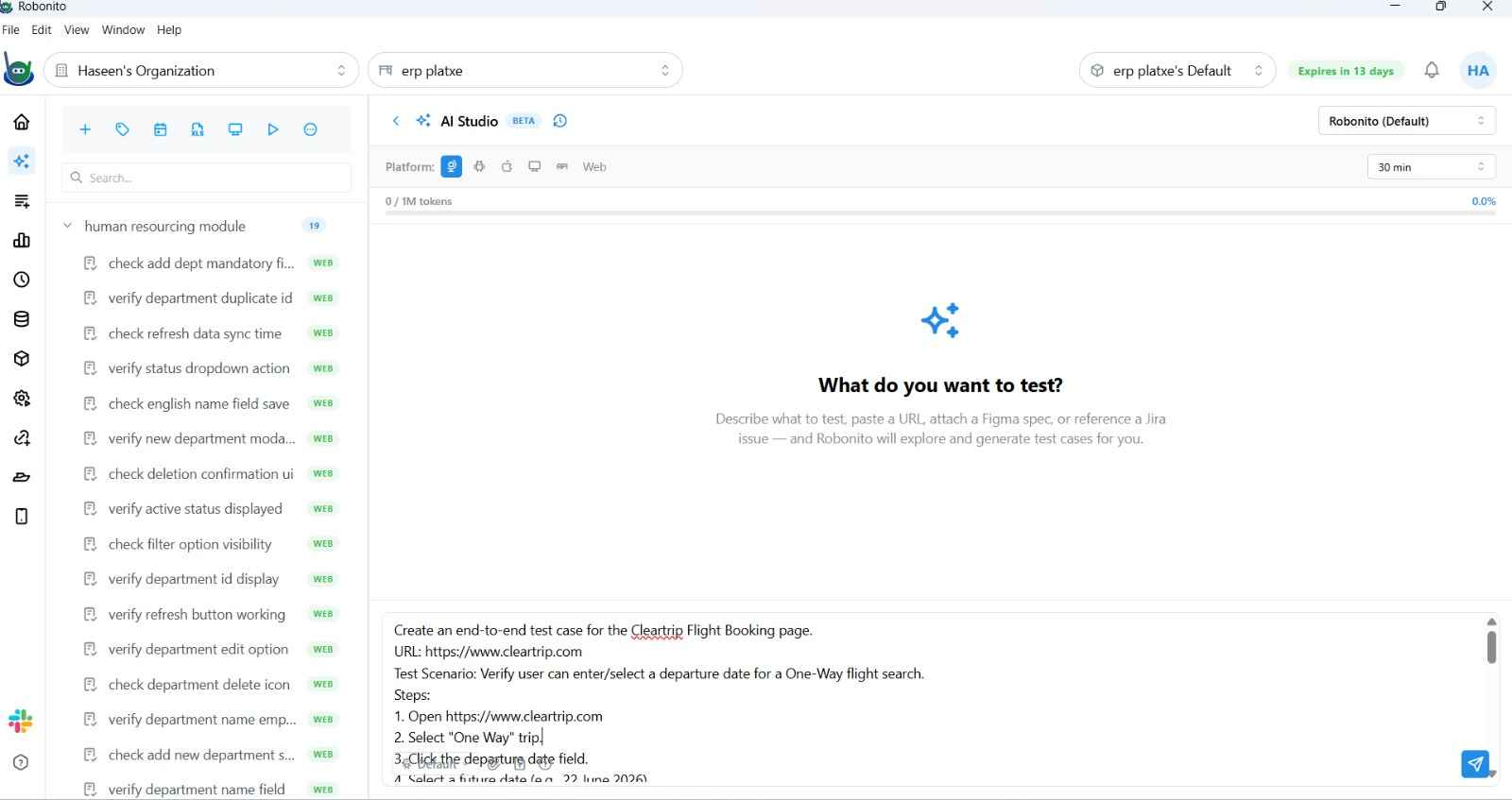
Click the input (it reads "Describe what to test, paste a URL, paste an API spec, or type a JIRA ID…") and type a specific request:
Test that I can log in and check out on https://www.saucedemo.com with the user standard_user and the password secret_sauce. Then confirm the order-confirmation page appears.
Press Enter to send. Hold Shift and press Enter for a line break.
6. Watch the run
The agent streams its work in the center pane. Expect, in order:
Text and thoughts
What the agent is reasoning about, as it goes.
Tool calls
Actions such as Read Page, Fill Form, and Submit, shown with a spinner while they run.
A todo list
The agent's plan, with items ticking off as complete.
Browser mirror and screenshots
What the page looks like as the agent moves through it, in the right pane.
At the top of the chat you'll find Stop and Pause controls. Use Stop to cancel, or Pause to hold and resume with Play.
If the agent gets stuck:
It may ask you a question or hand you the browser manually. See Human-in-the-loop.
7. Save the generated test case
When the agent is confident, it shows a generated test case inline in the chat with a Save to Suite control:
- Pick the target suite (the one you chose in step 4).
- Click Save.
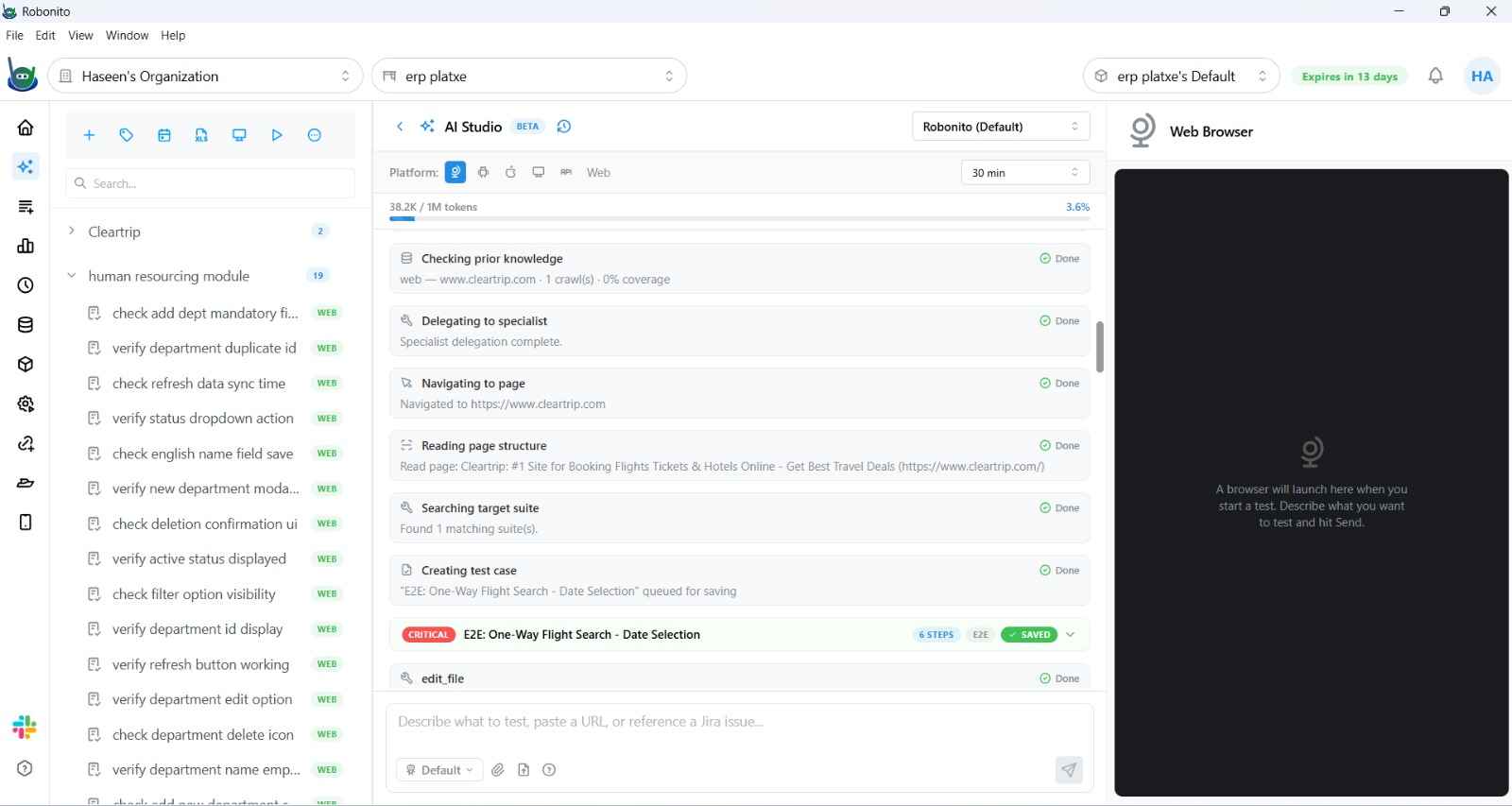
The card shows a ✓ Saved indicator, and the test case is immediately available in the Test Explorer inside your suite.
You did it ✅
You described a test, watched an agent run it, and shipped a reusable test case to your suite.
Where to go next
- Choose an agent mode — run with Plan (approve before acting) or Explore (map the app).
- Test as a persona — have the agent act the way a specific user would.
- Add a testing focus — responsive, accessibility, or performance checks.
- Understand the key concepts — thread, suite, persona, HITL, recipe, and bug ledger.
Prefer the terminal? The same web agent runs from the
robonito-cli. See Advanced — CLI and API.