Choose a Model & Provider in AI Studio
Robonito's AI Studio gives you access to an extensive catalog of state-of-the-art vision and reasoning models—including Anthropic Claude, OpenAI GPT, Google Gemini, OpenRouter, NVIDIA NIM, and local Ollama instances.
You can switch models directly from the chat composer toolbar at any point during your testing sessions.
Robonito Onboarding & Managed Provider Keys:
You do not need to provide or manage your own API keys to use AI Studio.
During customer onboarding, the Robonito team provisions and configures the required enterprise provider API keys directly on your workspace. You can immediately select and run models like Claude Sonnet 4.6, GPT-5.5, Gemini 3.1 Pro, or Robonito Default without pasting secrets, setting up third-party billing accounts, or managing rate limits.
If your enterprise has strict Bring-Your-Own-Key (BYOK) governance policies or requires custom billing attribution, you can optionally configure your own private API keys in Settings → External APIs.
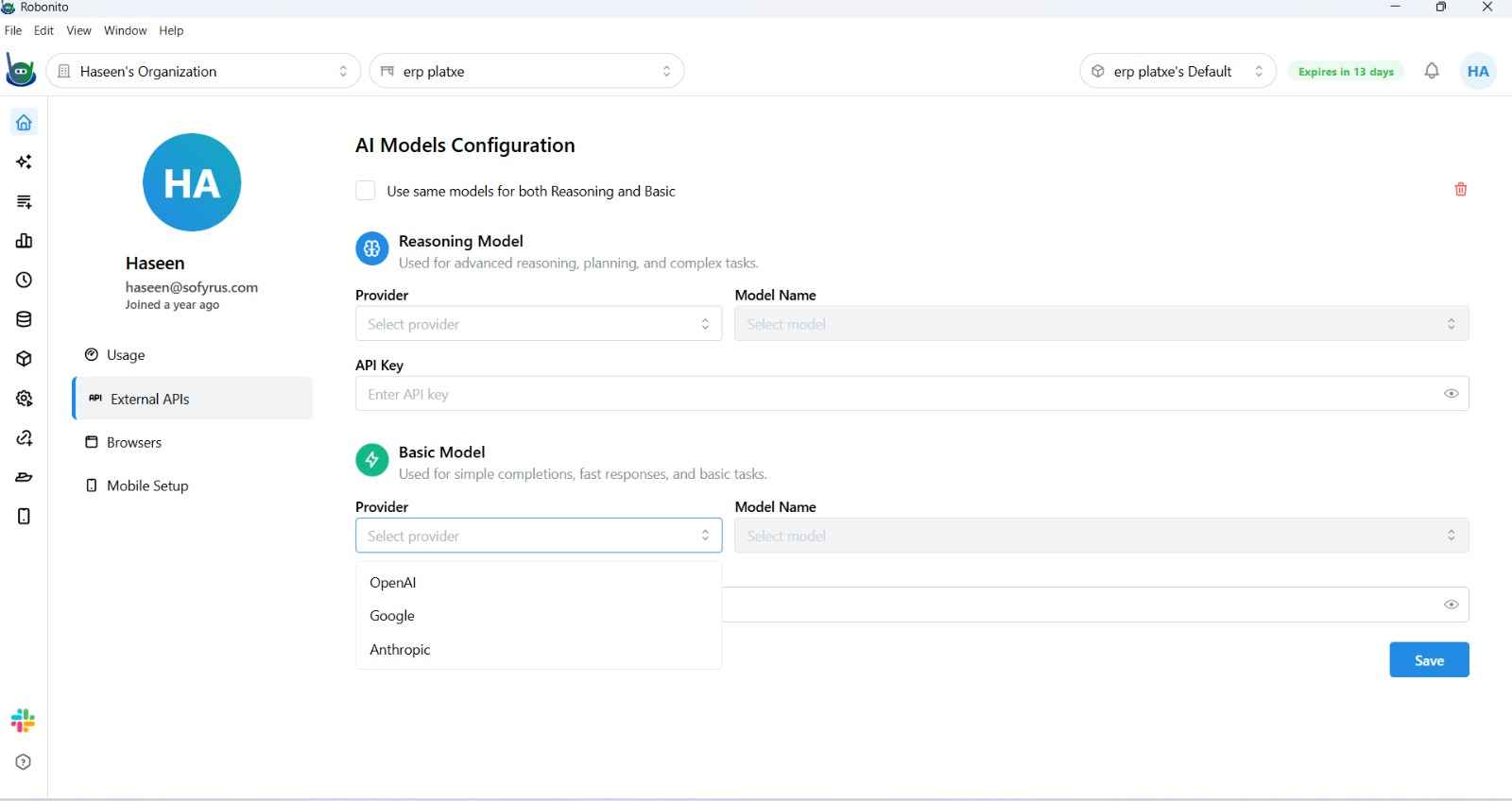
Image Update Note: The model selector screenshot (
/ai-studio/ai-studio-model-selector.png) should be refreshed with a capture of the modern searchable combobox dropdown in the AI Studio composer toolbar, showing the categorized catalog (Robonito Default, Anthropic, OpenAI, Google, OpenRouter, NVIDIA NIM, and Ollama).
How to Choose the Right Model
Different testing tasks benefit from different model capabilities. Use the guidance below to select the optimal model for your workflow:
| Testing Objective | Recommended Model | Why This Model? |
|---|---|---|
| Complex Exploratory & End-to-End Testing | Claude Sonnet 4.6 or GPT-5.5 | Exceptional spatial reasoning, deep vision perception for canvas/custom widgets, and superior judgment for multi-step checkout and onboarding flows. |
| Fast Regression Authoring & Daily Scenarios | Robonito (Default), Gemini 3 Flash, or GPT-5.4 mini | Extremely fast time-to-first-token (TTFT) and high throughput. Ideal for generating standard form tests, navigation paths, and repetitive CRUD suites. |
| Massive Context & Deep Documentation Ingestion | Gemini 3.1 Pro | Huge 1M+ token context window. Ingests full Figma component trees, lengthy Swagger/OpenAPI specs, and comprehensive PRD documents in a single prompt. |
| Local, Air-Gapped, or Zero-Cloud Testing | Ollama (Local) | Runs completely on your local workstation GPU/CPU without transmitting screenshots or DOM trees over the internet. |
Switching Models in the UI
You can change the active model at any time—even in the middle of an active conversation thread:
- In the AI Studio chat interface, locate the Model Selector dropdown in the composer toolbar (positioned directly beside the platform selector).
- Click the dropdown to open the searchable model catalog.
- Scroll through the grouped list or type to filter by model name (e.g., type "Sonnet" or "Flash").
- Select your preferred model.
- The session updates immediately. Subsequent prompts and agent execution steps will run on the newly selected model.
Supported Model Providers
Robonito supports an expansive roster of models out of the box:
1. Robonito (Default)
- Model: Robonito (Default) — powered by Gemini 3.1 Flash Lite.
- Capabilities: Fast multi-modal vision perception, 1M context window, zero setup.
- Managed: Enabled automatically for all workspaces.
2. Anthropic Claude
- Models: Claude Sonnet 4.6, Claude Opus 4.6, Claude Haiku 4.5.
- Capabilities: High-fidelity vision understanding, nuanced reasoning, exceptional tool calling precision, and robust self-correction.
- Key Setup: Pre-configured on your workspace during customer onboarding (or BYOK via Settings).
3. OpenAI GPT
- Models: GPT-5.5, GPT-5.4 mini, GPT-4.1.
- Capabilities: Multimodal vision, fast structured JSON generation, strong code and locator synthesis.
- Key Setup: Pre-configured on your workspace during customer onboarding (or BYOK via Settings).
4. Google Gemini
- Models: Gemini 3.1 Pro, Gemini 3 Flash, Gemini 2.5 Flash, Gemini 3.1 Flash Lite.
- Capabilities: Industry-leading 1M+ token context windows, native multimodal processing, high throughput.
- Key Setup: Pre-configured on your workspace during customer onboarding (or BYOK via Settings).
5. OpenRouter
- Model Selection: Dynamic catalog fetched at runtime via OpenRouter API.
- Capabilities: Access to hundreds of open-source and proprietary models through a unified proxy.
- Key Setup: Provide your OpenRouter API key in Settings → External APIs.
6. NVIDIA NIM
- Models: Specialized models including Kimi K2.6 and domain-specific NIM microservices.
- Capabilities: High-concurrency enterprise inference with 256k context. Base URL
https://integrate.api.nvidia.com/v1.
7. Ollama (Local Daemon)
- Model Selection: Automatically detects models installed locally on your machine (e.g.,
llama3.3,qwen2.5-coder,mistral). - Setup:
- Ensure your Ollama daemon is running (
ollama serve). - Select Ollama (Local) in the model selector.
- Click the gear icon next to the selector to verify your Base URL (default:
http://localhost:11434). - Robonito queries the local daemon and populates your installed models.
- Ensure your Ollama daemon is running (
Bring-Your-Own-Key (BYOK) & Custom Scoping
While Robonito provisions enterprise keys during customer onboarding, organizations that require private billing attribution or isolated rate limits can add custom keys:
- Navigate to Settings → External APIs.
- Select your target provider (Anthropic, OpenAI, Google, etc.).
- Enter your private API Key.
- Key Scoping & Protection:
- Keys are stored encrypted at rest with AES-256.
- You can scope keys to specific Workspaces or add them to a shared Organization Pool.
- When a test run starts, Robonito resolves workspace-scoped keys first, falling back to the organization pool, while enforcing per-minute token and request rate limits.
Verifying Model Connectivity
To verify your model selection:
- Open AI Studio and select your desired model from the composer dropdown.
- Enter a prompt such as "Analyze the current page and generate a smoke test for the navigation bar."
- When the agent responds, check the Session Metadata bar at the bottom of the thread:
- It displays the active model name.
- Shows live input/output token usage.
- Tracks cache hit ratios and execution latency.
Related Documentation
- AI Studio Quick Start — Record and explore with your first AI Studio agent.
- Choose an Agent Mode — Selecting Explore, Bug Hunter, or Test Architect modes.
- AI Studio Reference — Full reference for tool calling, thread history, and settings.