UI / Element-Based Assertions
UI / Element-Based Assertions are strictly designed to validate the physical presence, visibility, quantity, and aesthetic styling of specific DOM elements on a web page.
These assertions guarantee that your application's architecture renders correctly and provides visual feedback exactly as expected.
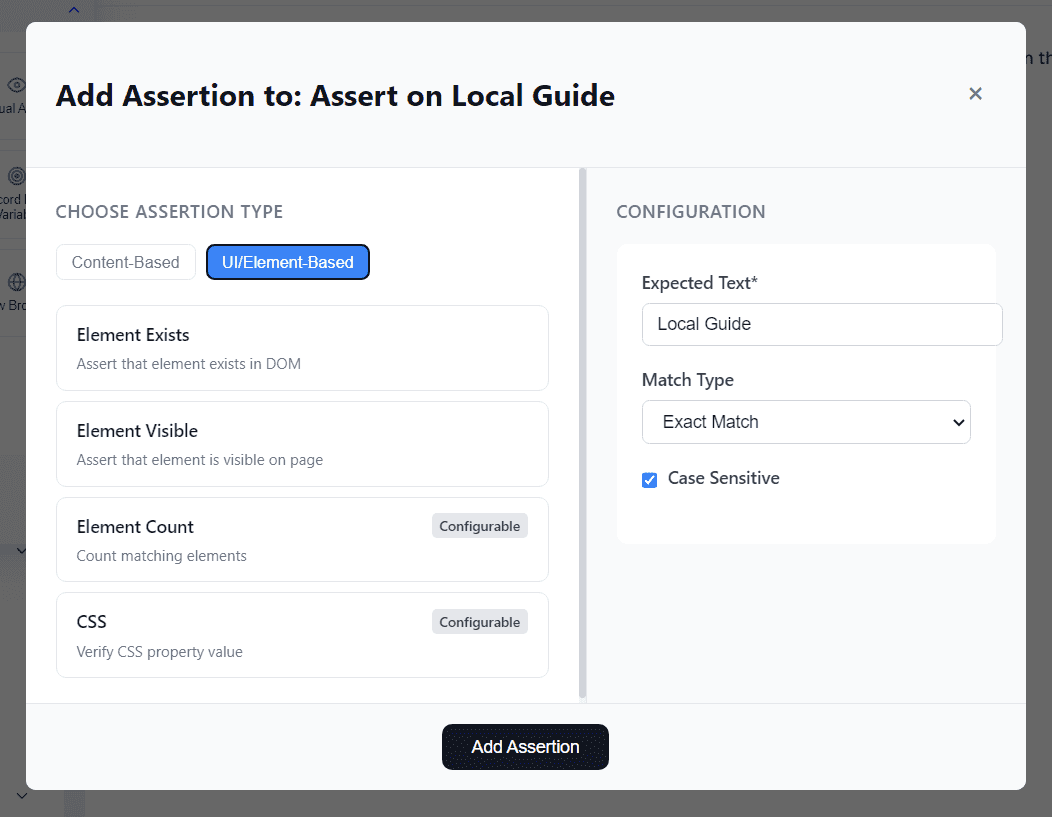
Available UI Assertion Types
Robonito supports four primary UI assertion categories:
1. Element Exists
Validates that a specific HTML element physically exists within the document's DOM structure.
- Behavior: This assertion passes if the element is in the code natively, regardless of whether it is currently visible on the screen or hidden via CSS (e.g.,
display: none). - Use Case: Ensuring that a hidden modal container or tracking script tag was successfully injected by the server.
2. Element Visible
Validates that a specific DOM element is actively rendering and visible to the end-user.
- Behavior: Fails if the element exists in the code but is hidden from the user viewport.
- Use Case: Confirming that a critical "Submit" button or a red validation error banner is actually visible before the test attempts to interact with it.
3. Element Count
Validates the exact mathematical number of structural elements matching your selected CSS/XPath selector.
- Configuration: You must provide an Expected Count Value (Integer).
- Use Case: Verifying that a search result grid dynamically rendered exactly 12 product cards, or that a dropdown menu contains 5 distinct selectable items.
4. CSS Assertion
Validates the dynamic output value of a specific CSS stylistic property attached to an element.
- Configuration:
- CSS Property Name: The CSS key (e.g.,
background-color,font-size,z-index). - Expected Property Value: The expected CSS computed result (e.g.,
rgb(255, 0, 0),16px).
- CSS Property Name: The CSS key (e.g.,
- Use Case: Ensuring precise aesthetic rules, such as verifying that an input border turns red (
#FF0000) during a form validation error.
Configuring Matching Rules
When configuring your UI assertion logic, Robonito allows you to define precision rules:
- Expected Value: The explicit condition you are checking against.
- Match Type: Choose between an
Exact Match(must be perfect) or aPartial Match(contains the value). - Case Sensitive: Toggle strict capitalization enforcement.
Adding the Assertion
To attach a UI validation to your test:
- Review your chosen assertion type and the associated configuration settings.
- Click the Add Assertion button.
- The assertion is now bound to the active test step. During execution, Robonito will evaluate the DOM exactly at that moment and log a definitive Pass or Fail timeline status in your test report.