Importing Existing API Collections (Postman & Swagger)
If your engineering team already maintains API definitions in Postman Collections or OpenAPI / Swagger specifications, you do not need to manually configure endpoints from scratch. Robonito allows you to import these collections directly, converting them into executable, structured API test cases in seconds.
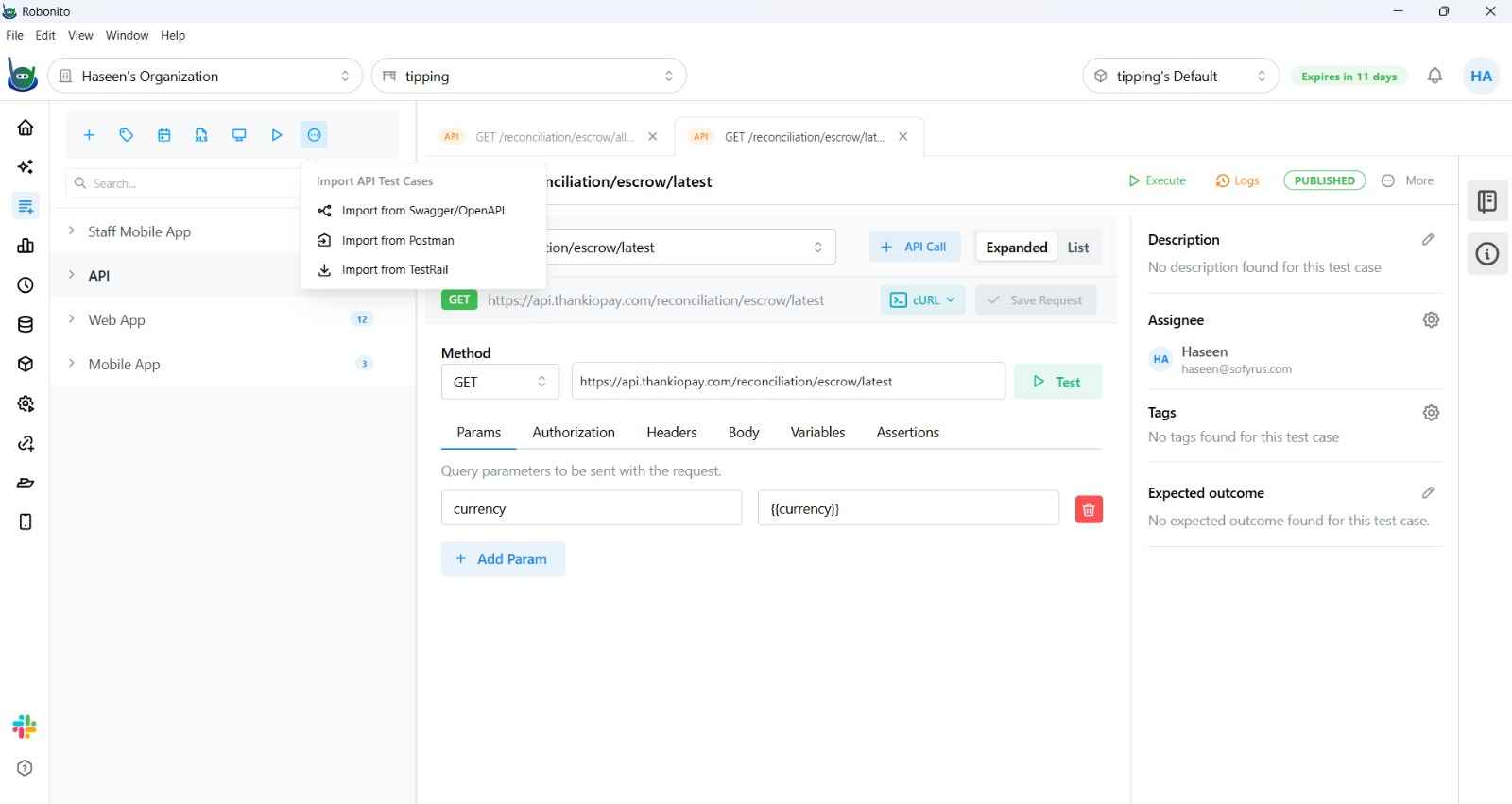
1. Importing from Postman
Robonito supports Postman Collection v2 and v2.1 JSON export files.
Exporting from Postman
- Open the Postman application.
- In the left sidebar, locate the collection you wish to migrate.
- Click the three dots (
...) next to the collection name and select Export. - Choose Collection v2.1 (recommended) or Collection v2 format and save the
.jsonfile to your computer.
Importing into Robonito
- In your Robonito workspace, navigate to your API Suite or open an existing API Test Case.
- In the top toolbar, click Import → Postman Collection.
- Select your exported Postman
.jsonfile. - Robonito automatically parses the file and maps each request:
- HTTP Method & URL: Preserved exactly, including path variables.
- Headers: All custom request headers are migrated.
- Body Payloads: Raw JSON payloads and form-data are imported.
- Authentication: Supported auth types (Bearer, Basic, API Key) are automatically mapped to Robonito's Authentication configuration.
- Click Import. Your requests are converted into organized API test steps ready for immediate execution and chaining.
2. Importing from OpenAPI / Swagger
Robonito supports importing API endpoints defined in OpenAPI 3.0+ and Swagger 2.0 specifications via URL or JSON/YAML upload.
Importing into Robonito
- In your API Test Case editor or Suite view, click Import → Swagger / OpenAPI.
- Choose your input source:
- Specification URL: Enter the public or intranet URL pointing to your schema (e.g.,
https://api.mycompany.com/v1/openapi.jsonorhttps://petstore.swagger.io/v2/swagger.json). - Upload File: Select a local
.jsonor.yaml/.ymlspecification file.
- Specification URL: Enter the public or intranet URL pointing to your schema (e.g.,
- Click Parse Specification.
- Choose Import Mode: Robonito presents two tabs:
- Endpoints View: A flat list of all discovered endpoints grouped by tag and path. Select specific endpoints to import as independent test steps.
- Journeys View (AI): Robonito's AI analyzes paths, request schemas, parameters, and response bodies to discover multi-step logical user journeys (e.g. User Onboarding, Create & Verify Resource, Checkout Flow). Each journey displays a visual diagram of chained requests with variable passing arrows.
- Check the boxes next to the endpoints or AI journeys you want to import.
- Click Import.
Robonito generates fully populated request steps with parameter placeholders, URL path structures, schema-compliant example request bodies, and pre-wired variable chaining.
What to Do After Importing
Once your endpoints are imported:
- Configure Environment Variables: Replace hardcoded base URLs (e.g.,
https://api.staging.com) with{{baseUrl}}using Global Variables. - Chain Endpoints: Extract tokens and IDs from upstream requests to feed into downstream steps. See API Chaining.
- Add Assertions: Configure status code checks, response time limits, and JSONPath schema validations. See API Assertions.
- Execute & Validate: Run the imported test steps to verify connectivity and validate that your backend responses match expectations.
Related Documentation
- Creating an API Test Case — Step-by-step guide to creating test cases manually.
- API Chaining — Linking imported requests with dynamic variables.
- Configuring an API Endpoint — Adjusting methods, headers, and authentication.