Execution Reports
The Reports dashboard is your centralized view of every test execution across your workspace. It tracks pass/fail trends, surfaces recent failures with root-cause details, and provides deep-dive logs for individual test runs — across web, API, and mobile tests.
The Execution Trend Graph
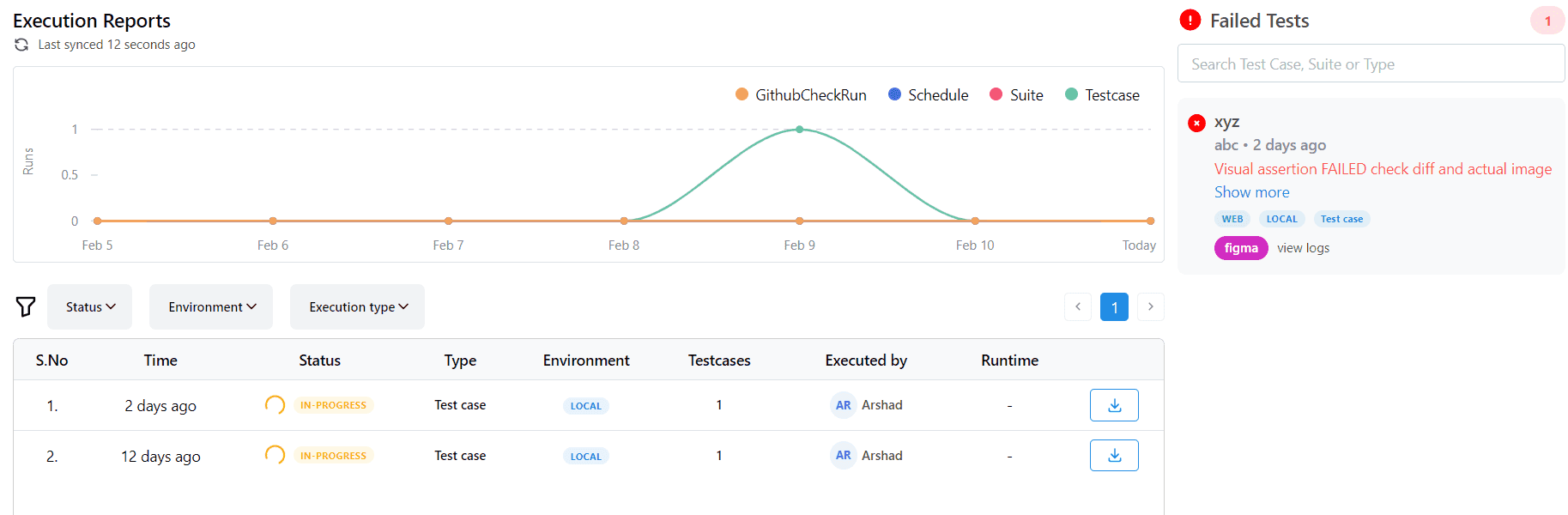
The trend chart at the top of the Reports page visualizes test runs over hours, days, or weeks. Executions are broken down by source:
- GitHub Check Runs — runs triggered by PR events via the GitHub integration
- Scheduled Executions — runs triggered by configured schedules
- Test Suites — manual suite-level executions
- Individual Test Cases — single test case runs
Use the trend graph to detect sudden spikes in failures after a deployment, measure testing frequency, and track overall automation health over time.
Failed Tests Panel
The right side of the Reports dashboard highlights your most recently failed test cases:
| Column | Description |
|---|---|
| Test Case Name | The specific scenario that failed |
| Suite Name | The parent suite |
| Time of Failure | Precise timestamp of the run |
| Failure Reason | Auto-generated error description |
| Environment | Where it ran (LOCAL or CLOUD) |
| Test Type | Platform classification (WEB, API, MOBILE) |
- Click Show More to expand detailed failure metrics.
- Click View Logs to open the full terminal execution log.
Filtering Reports
Use the filter panel to narrow down the report view:
| Filter | Options |
|---|---|
| Status | Passed, Failed, In Progress |
| Environment | Local, Cloud |
| Execution Type | Test Case, Suite, Schedule, GitHub Check Run |
| Tags | Filter by test case tags (e.g., smoke, regression) |
| Date Range | Specify a custom date window |
Exporting Reports
Click the Download button to export execution results:
- CSV — tabular export of all test results for a selected period. Useful for dashboards, spreadsheets, and stakeholder reports.
- Logs — raw terminal output for a specific execution run.
Execution Detail View
Click any execution entry to open its detail view. This is your primary debugging workspace:
Step-by-Step Timeline
Every recorded step is shown in execution order with individual pass/fail status. Failed steps are highlighted in red with:
- The exact error message
- A screenshot taken at the moment of failure
- The DOM state at the time of the failure
- Network request/response data (for API steps)
Assertion Results
For each assertion step, the detail view shows:
- Expected value — what the test expected to find
- Actual value — what was found in the live app
- Diff — for visual assertions, a pixel-level image diff highlighting the changed regions
Console and Network Logs
Web test executions include:
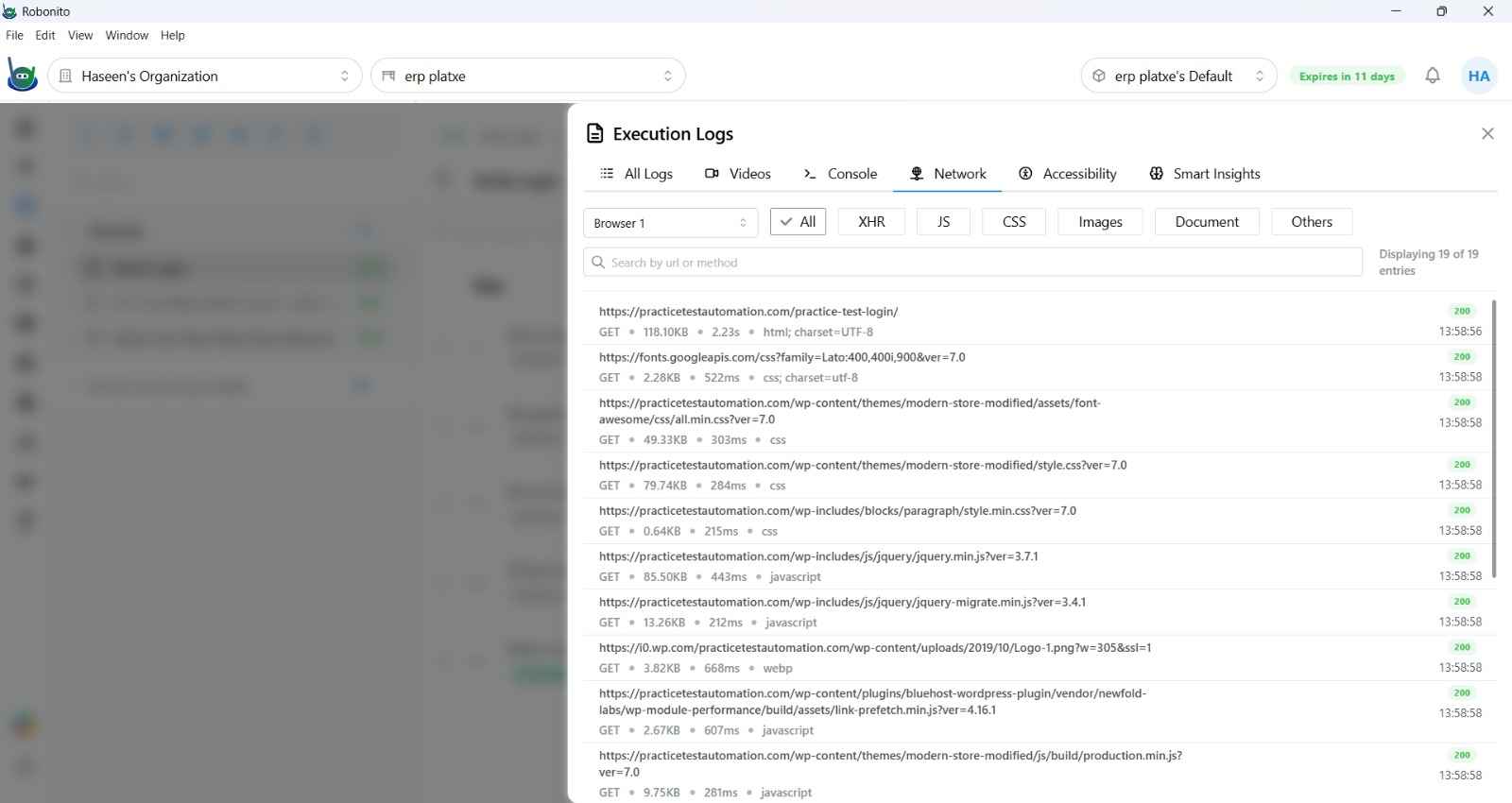
- Browser console logs — JavaScript errors, warnings, and custom console output captured during the run
- HAR data — full network request/response log (HTTP Archive format) for debugging API calls made by the application during the test
Log to Issue
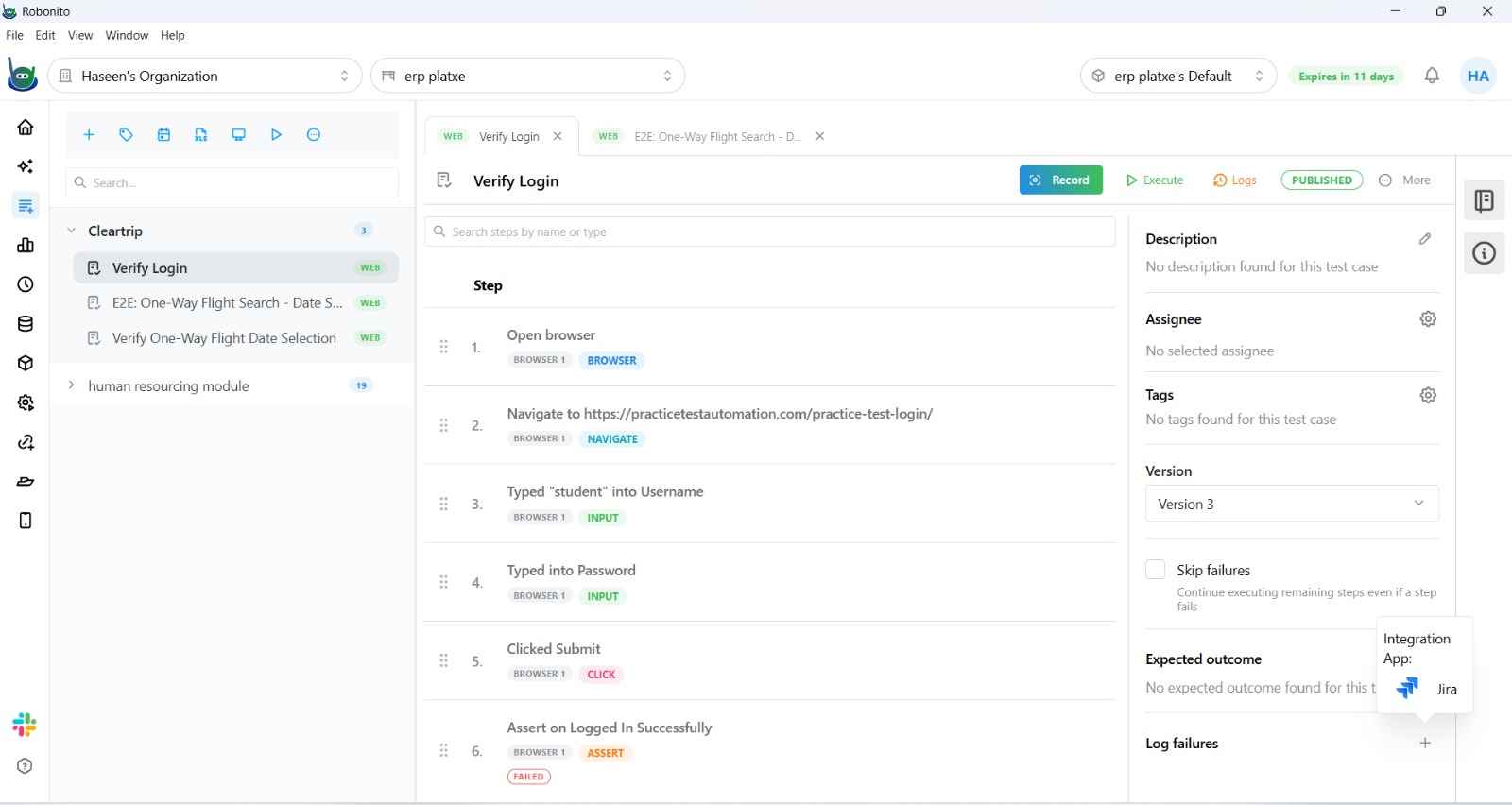
From any failed step, click Log Issue to create a bug ticket in Jira, Linear, or Asana with failure details pre-filled — without leaving the report.
Test Case Health Score
Each test case in the Reports dashboard shows a Health Score — a rolling stability percentage calculated from recent execution history. A test that passes consistently scores near 100%; a flaky test that fails intermittently will have a lower score.
Use health scores to:
- Identify flaky tests that need selector updates or timing fixes.
- Prioritize maintenance on the least stable parts of your test suite.
- Track improvement over time as fixes are applied.
API Test Reports
API test executions have their own detail view that shows:
- Request method, URL, headers, and body for each step
- Response status code, headers, and body
- Response time in milliseconds
- Assertion results with expected vs. actual values
- Variable extraction results showing what was captured and passed to the next step