Environment Manager
The Environment Manager is where you manage workspace-wide configurations, secret keys, and platform-specific dependencies. It ensures that your test execution environment is correctly provisioned for the type of testing you need to perform.
Managing Workspace Environments
Robonito uses Environment configurations to decouple your test logic from your infrastructure. Instead of hard-coding URLs or API keys into your tests, you can store them as Environment Variables.
1. System Dependencies
The Environment Manager tracks the status of external services required for automation:
- Appium Status: Required for Mobile Testing.
- ADB/iOS SDKs: Required for native device communication.
- Docker Engine: (Optional) for containerized local execution.
2. Global Variables
Define key-value pairs that can be accessed across all suites in a workspace:
- Base URLs: (e.g.,
STAGING_URL,PROD_URL) - API Secrets: Encrypted keys used in API test headers.
- Global Auth Tokens: Reusable credentials for system-wide login flows.
Accessing the Manager
To open the Environment Manager:
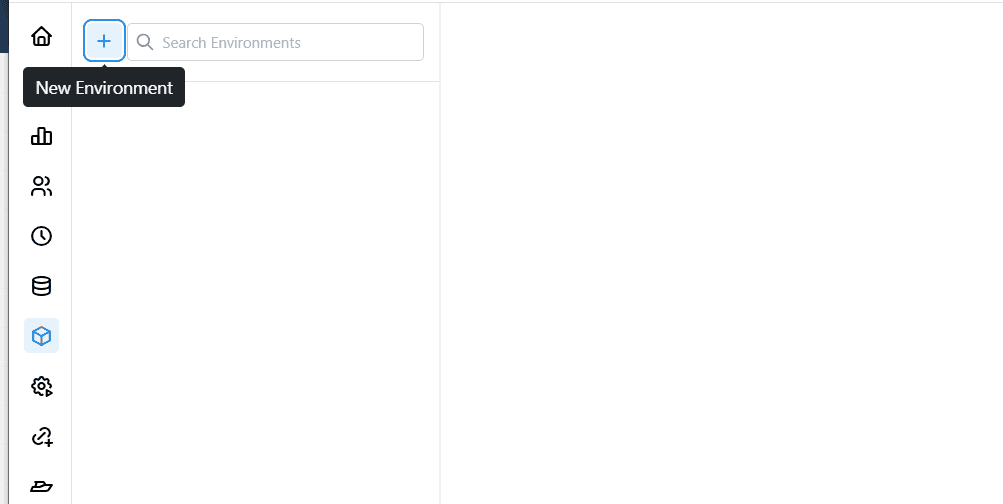
- Navigate to the left sidebar menu.
- Click on the Environment Manager icon (the cube icon).
Creating a New Environment
You can create isolated environments (like Staging, QA, or Production) to maintain separate variables.
- Click "New Environment": Click the
+icon next to the "Search Environments" bar on the top left. - Fill Details: Enter the Environment Name and an optional Description in the modal, then click Create.
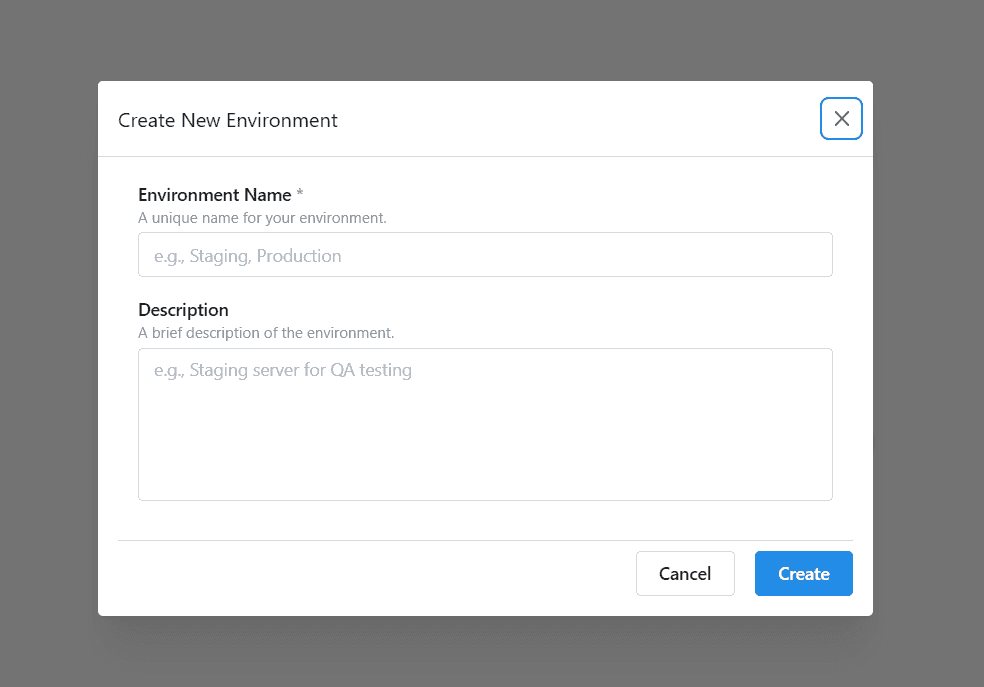
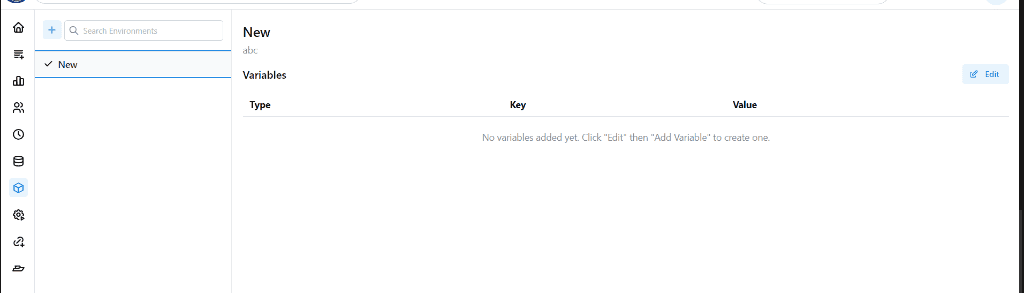
- Select Environment: The new environment will appear in the left list. Select it to view its configuration.
- Manage Variables: Initially, the variables list will be empty. Click the Edit button to start defining variables.
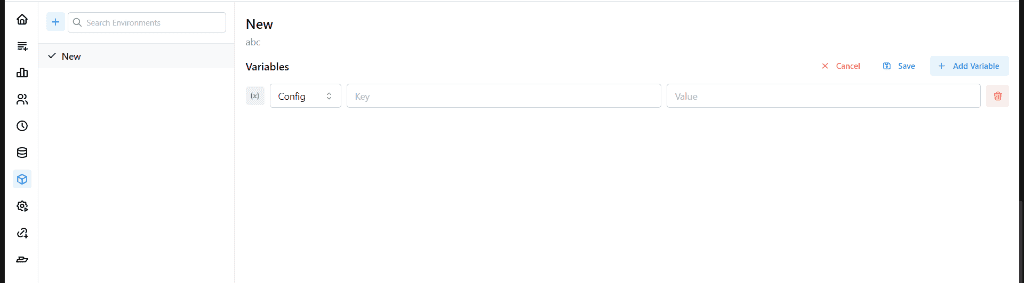
- Add Variables: Click + Add Variable to add new key-value pairs (e.g.,
BASE_URL). You can set the variable type (like Config, Secret, etc.) based on your security needs. Click Save when done.
Dependency Health Checks
Robonito automatically performs a health check on your environment when you open this page.
| Status | Meaning | Action |
|---|---|---|
✅ Configured | Dependency is found and working | No action needed |
⚠️ Missing | Component not detected | Click Setup or follow the manual installation guide |
❌ Error | Component is installed but broken | Hover over the status to see the error log |
See also: Browsers Management | Mobile Setup