Parallel Execution
Parallel execution lets you run multiple test cases simultaneously — across different browsers, devices, or environments — instead of waiting for each test to finish before starting the next. This dramatically reduces the total time for large regression suites.
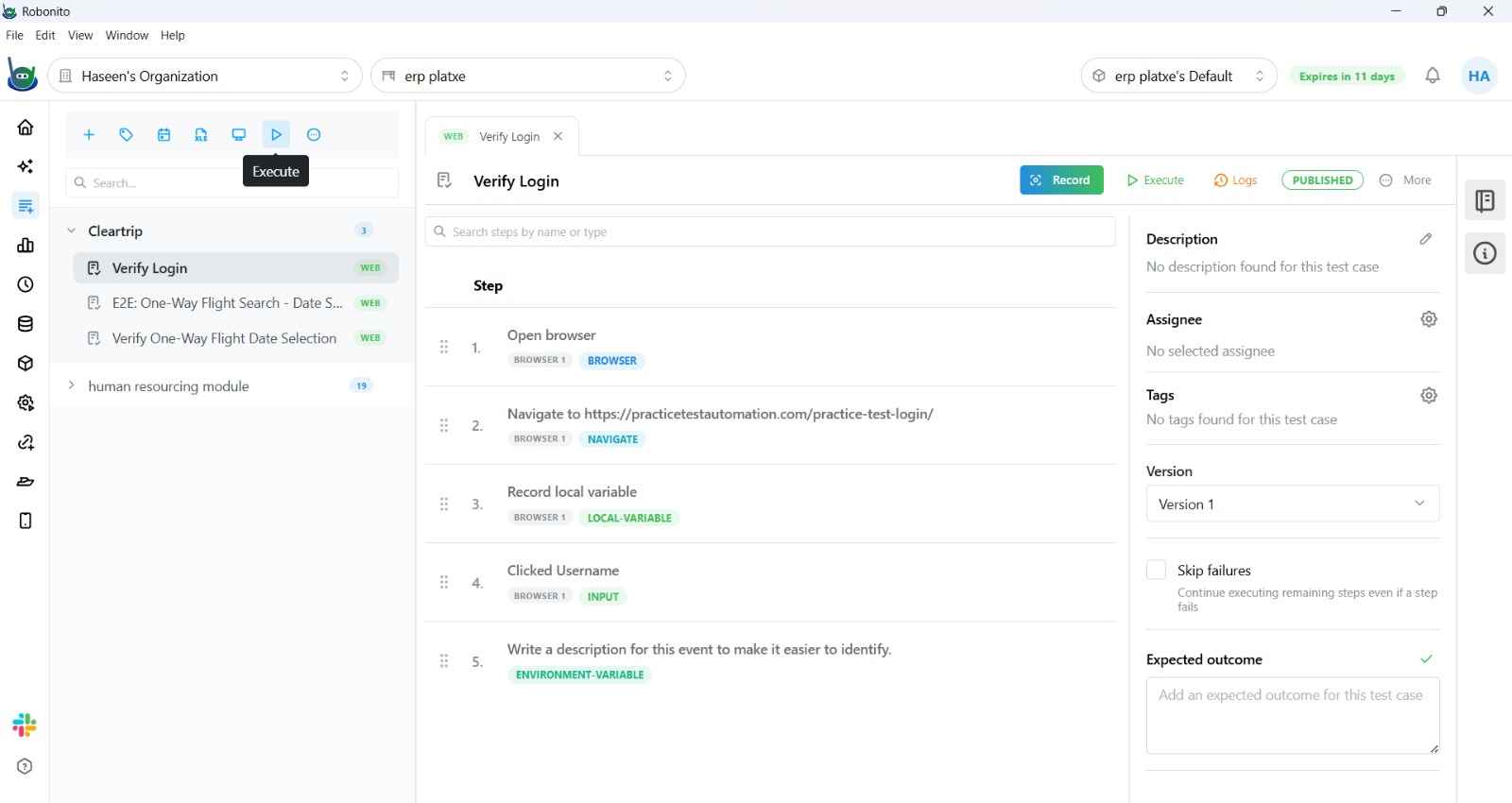
Local vs. Cloud Parallelization
| Mode | Parallelization | Best For |
|---|---|---|
| Local | Sequential by default | Development, debugging, single-machine runs |
| Cloud | Parallel by default | CI/CD pipelines, large regression suites, overnight runs |
Local Execution
Local execution runs tests sequentially on your machine using the locally installed browser. Running multiple tests in parallel locally is constrained by your machine's CPU and memory — launching too many browser instances simultaneously can cause flakiness.
For parallelism on a local machine, keep the concurrency low (2–4 parallel tests) and ensure your machine has enough resources.
Cloud Execution
Cloud execution distributes tests across Robonito's managed cloud infrastructure. Multiple tests run simultaneously on isolated, identical cloud machines — each gets its own dedicated browser instance and network environment. This eliminates interference between tests and removes the physical limit of your local hardware.
Running Tests in Parallel
Suite-Level Bulk Execution
The fastest way to run tests in parallel is through Suite Execution:
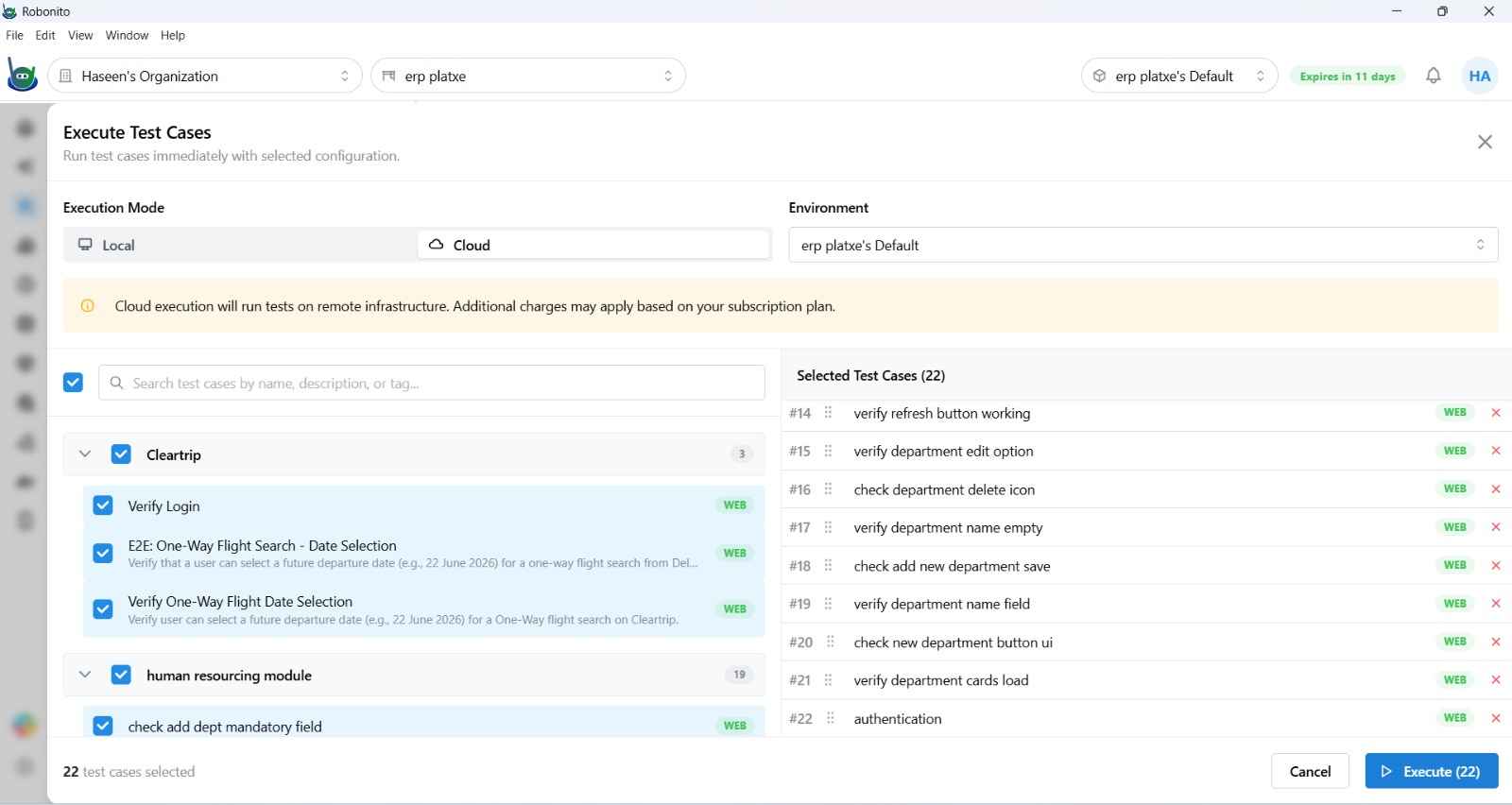
- In the Test Explorer, click the Execute button at the suite level (not on an individual test case).
- The Execution Configuration dialog opens. Select Cloud under Runs On.
- Choose the target Environment.
- Click Execute.
Robonito dispatches all test cases in the suite to the cloud simultaneously. Progress for each test is streamed back to your dashboard in real-time.
Scheduled Parallel Execution
Schedules automatically run all mapped test cases in parallel on the cloud. When a schedule fires:
- Robonito fetches all test cases mapped to that schedule.
- All tests are dispatched to cloud workers simultaneously.
- A unified execution report is generated once all tests complete.
See Schedules → for setup.
GitHub Check Runs
When a GitHub event triggers a check run (e.g., a PR is opened), all test cases in the configured event rule run in parallel on the cloud — returning a single combined pass/fail status to the PR.
See GitHub Integration →.
Execution Report with Parallel Runs
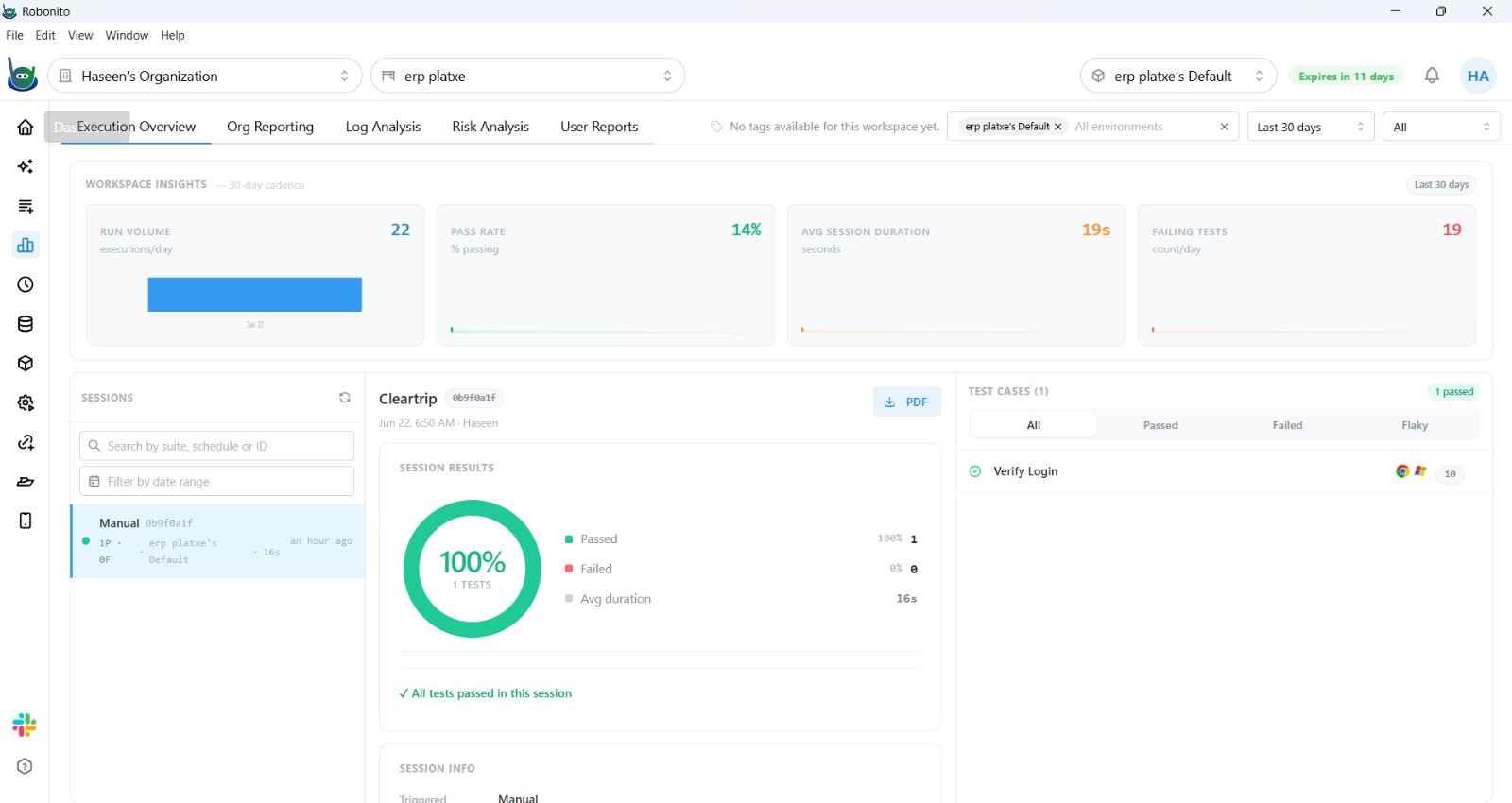
When tests run in parallel, the Reports dashboard shows each individual test execution and its result independently. You can filter by execution batch, suite, or timestamp to view the results of a specific parallel run.
A single cloud execution batch that ran 10 tests simultaneously will appear in Reports as 10 individual test case results, all sharing the same timestamp and batch ID.
Cross-Browser Parallel Testing
When running via the cloud, you can configure different test cases to run against different browsers (Chrome, Firefox) simultaneously. This is configured at the Execution Configuration level:
- Open the Execution Configuration dialog.
- Under Environment, select a browser profile that targets a different browser.
- Create multiple execution configs — one per browser — and run them together.
See Browser Management → for configuring browser profiles.
Tips for Reliable Parallel Runs
- Isolate test data — parallel tests that operate on the same data (same user, same record) can interfere. Use
{{$email}}or data source randomization to ensure each parallel test uses a unique data set. - Avoid shared state — tests should not depend on the output of another test running in parallel. Use Global Variables only for read-only shared configuration, not for mutable state.
- Set reasonable timeouts — cloud workers have a default session timeout. For long E2E flows, ensure your test case is scoped to a single scenario rather than chaining many unrelated operations.
- Use tags to partition — tag your test cases (
smoke,regression,P0) and run only the relevant subset in parallel for specific scenarios (e.g., onlysmoketests before a deploy).