Browser Management
The Browser Management section allows you to download, install, and securely manage the browsers used for test recording and execution within the Robonito application.
Only browsers that are explicitly downloaded or actively detected on your system are available for use in your automated test runs.
Accessing Browser Management
To view and manage your test browsers:
- Log in to your Robonito workspace.
- Click on your Profile icon located in the top-right corner of the interface.
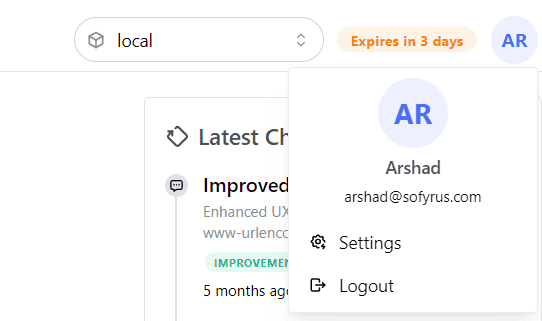
- Select Settings from the profile dropdown menu.
- Click on the Browser tab in the settings sidebar.
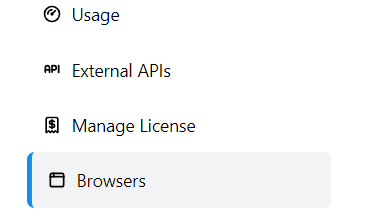
The Browser Management dashboard will open, giving you direct control over your automation environment's browsers.
Supported Browsers in Robonito
Robonito supports three main browsers for recording and test execution. The application provides dedicated, portable versions for Chrome and Firefox to guarantee consistent execution, while leveraging system installations for Microsoft Edge.
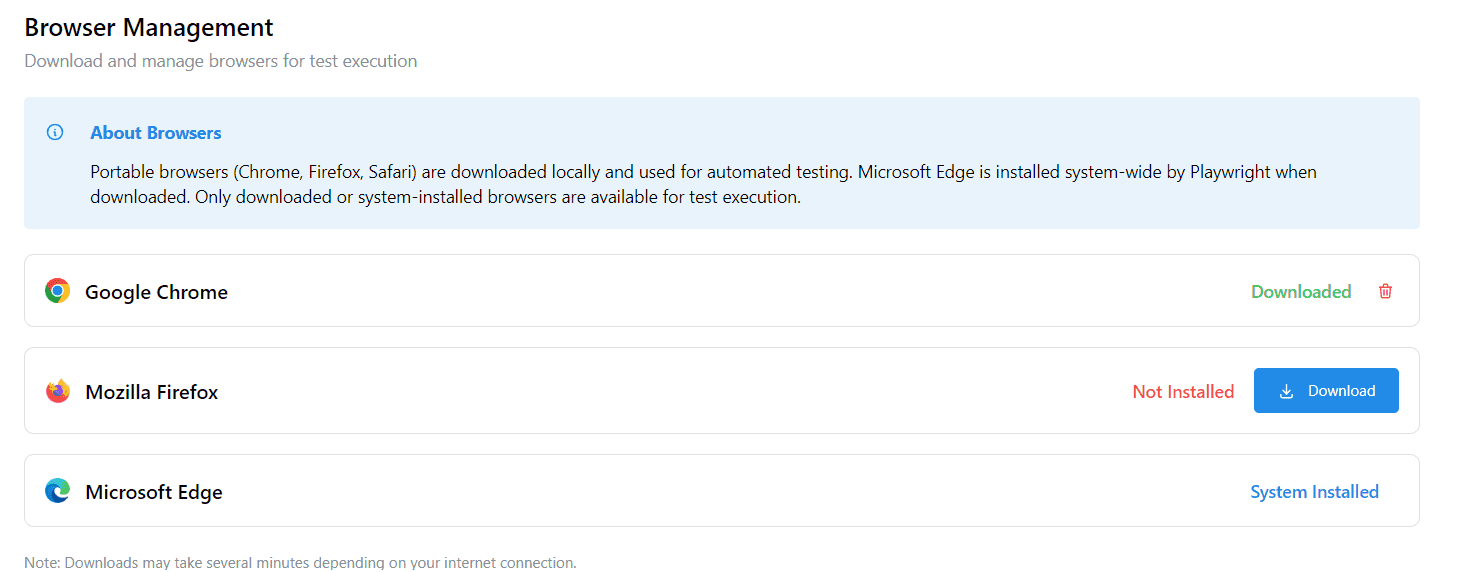
1. Google Chrome
Initial Status: Downloaded (Default)
- A portable version of Google Chrome is downloaded by default when you install Robonito.
- It is fully ready for immediate use during both test recording and batch execution.
- Can be manually deleted from your Robonito environment if no longer required.
2. Mozilla Firefox
Initial Status: Not Installed
- Must be explicitly requested and downloaded within Robonito before it can be used for automation.
- To Setup: Click the Download button next to Mozilla Firefox. Once the internal fetching process finishes, Firefox becomes immediately available for your test execution pipelines.
3. Microsoft Edge
Initial Status: System Installed
- Microsoft Edge is installed system-wide using its official installer, rather than a portable download within Robonito.
- Robonito will automatically detect its presence and make it available.
- Note for macOS users: Microsoft Edge requires a manual system installation on macOS before Robonito can detect it.
(Note: Apple Safari/WebKit is currently unsupported in the Robonito Desktop active browser UI).
Managing Your Browsers
Downloading a New Browser
- Click the Download button located directly next to the required browser name (e.g., Mozilla Firefox).
- Wait briefly: Initial download times may vary based on your local internet configuration and speeds.
- Once completed, the browser status officially changes to Downloaded.
Removing an Existing Browser
- Click the Delete (Trash) icon next to an actively downloaded portable browser (like Google Chrome or Firefox).
- The browser codebase is safely wiped from the local host system, freeing up designated storage space.
- The removed browser will instantly disappear from your active recording and execution dropdown menus.
(Note: Because Microsoft Edge relies on system-wide installation, it cannot be deleted directly from via the Robonito UI trash icon).
Browser Availability During Execution
Robonito explicitly restricts test configurations to guarantee successful runs:
- Only browsers officially marked as Downloaded or System Installed can be configured during test recording and execution.
- Browsers marked as
Not Installedwill be completely hidden from the test browser selection dropdown menus until they are successfully fetched.
Important Notes & Best Practices:
- Initial Downloads: Downloading new browsers directly affects your local machine's storage limit. Ensure your device has sufficient disk space available.
- Network Impact: Ensure you are on a stable internet connection before initiating a browser download inside the app.
- Proactive Setup: We highly recommend downloading all your required browser targets simultaneously before actively recording new QA projects!