Choose an Agent Mode
AI Studio provides three distinct Agent Modes for the Web testing platform: Default, Plan, and Explore.
Each mode defines the execution strategy and human oversight level the autonomous agent applies when interacting with your application.
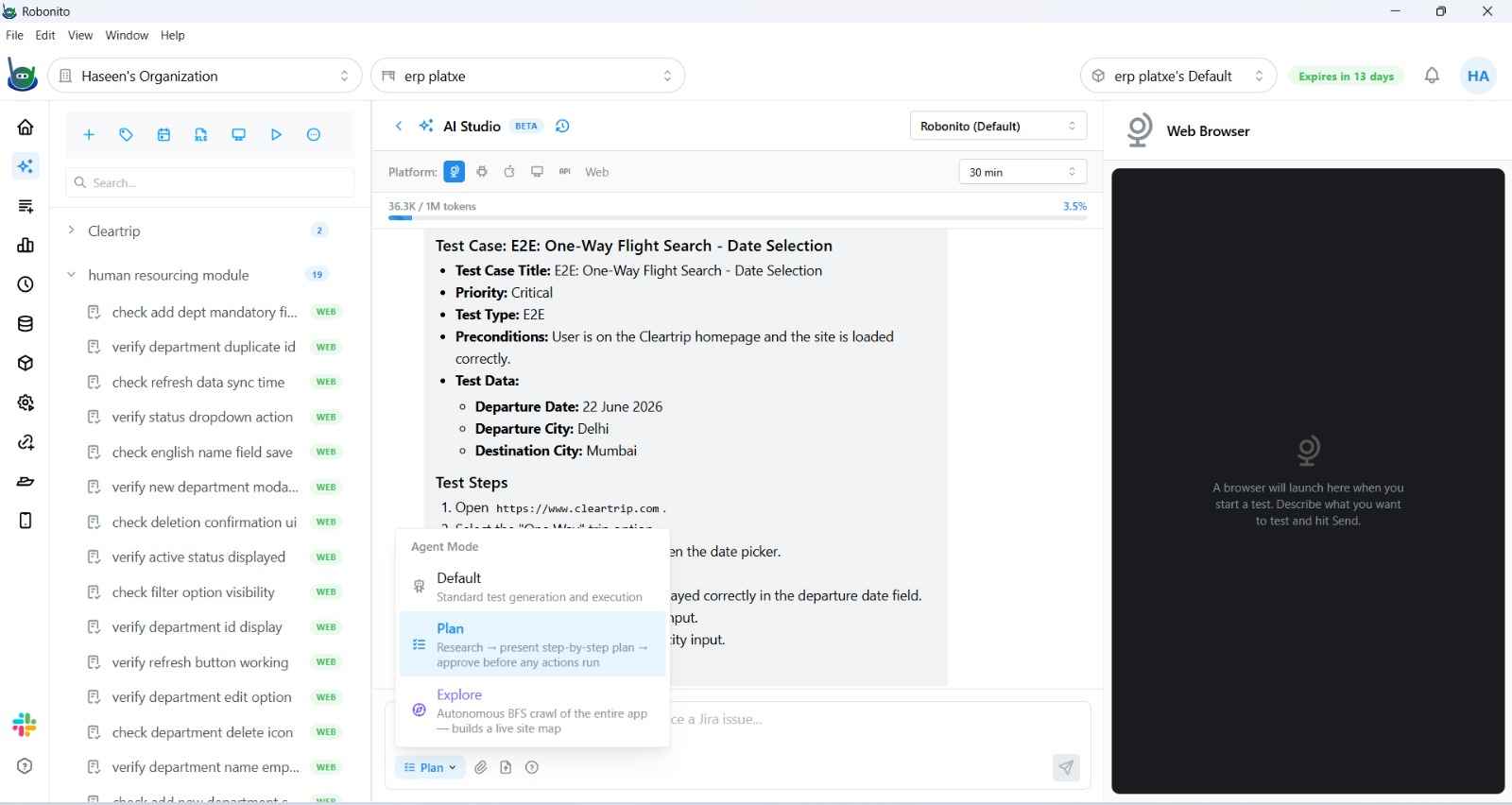
The mode selector is located as an interactive pill directly adjacent to the chat composer in AI Studio (visible when the Web platform is selected).
Overview of Modes
| Mode | Best Used When | Autonomous Behavior | Human Checkpoints |
|---|---|---|---|
| Default | You have a clear, specific test objective and want immediate end-to-end execution. | The agent translates your prompt into browser actions immediately, executing and capturing steps until the goal is achieved. | Pauses only if it hits an unexpected blocker or ambiguous state (via Human-in-the-Loop). |
| Plan | You need to review and approve the agent's strategy before any browser actions are taken (e.g., destructive actions or complex workflows). | The agent inspects the goal, drafts a multi-step Strategic Plan Card, and halts until you approve or adjust it. Once approved, it executes the agreed steps. | Mandatory approval checkpoint before any browser interactions begin. |
| Explore | You are testing a new, unfamiliar, or broad application surface and want automated coverage without writing explicit prompts. | The agent maps the application, walks real user flows in resumable segments, validates business rules, generates synthetic test data, and automatically saves distinct test cases to your suite. | Autonomous execution with an automated Explore Save Guard that prevents duplicate tests and reuses authentication flows. |
Mode Availability:
Plan and Explore are mutually exclusive strategies. Select one per run. Mode selection applies to the Web testing platform.
1. Default Mode
In Default Mode, AI Studio behaves as an autonomous task executor.
How It Works
- You describe the target flow in natural language (e.g., "Search for wireless headphones, filter by price under $100, add the second item to the cart, and verify the cart total").
- The agent launches the browser, navigates to your target URL, and immediately begins interacting with DOM elements.
- Every validated action (click, form fill, hover, selection) is captured into the test step stream.
- Once the goal is reached, the agent records the final outcome assertions, completes the test case, and presents a Save to Suite card.
When to Use Default Mode
- Creating targeted regression tests for known features.
- Quick verification of single user stories or bug fixes.
- Everyday end-to-end test authoring where you trust the agent's direct execution.
2. Plan Mode
In Plan Mode, the agent prioritizes safety and verification. It designs a step-by-step strategy first and waits for human sign-off before touching the live browser.
How It Works
- Prompt Submission: You enter your testing goal in the chat composer with the Plan toggle enabled.
- Strategy Generation: The agent analyzes the application context, requirements, and goal, then presents an interactive Strategic Plan Card directly inside the chat stream.
- Review & Adjust: You inspect each planned step:
- Verify navigation targets, form inputs, and expected validation checkpoints.
- You can approve the plan as-is or reply with adjustments (e.g., "Skip step 3 and use a guest checkout instead").
- Execution: Click Approve Plan. The agent unlocks the browser and executes the approved sequence step-by-step.
- Review Card: After execution completes, a final review card summarizes what was executed, allowing you to save the resulting test case into your designated suite.
When to Use Plan Mode
- Sensitive operations involving payment gateways, user account deletions, or data modifications.
- Strict corporate QA processes requiring human review of test logic before execution.
- Complex end-to-end flows where the exact sequence of steps must match formal test specifications.
3. Explore Mode
In Explore Mode, AI Studio acts as an exploratory QA engineer. Rather than executing a single predefined prompt, the agent autonomously navigates your application, uncovers key user journeys, tests business rules, and commits high-value test cases to your test suite.
Key Architectural Capabilities
Resumable One-Flow Segments
Explore mode executes in clean, contained segments. Each segment focuses on walking a single complete user journey (e.g., user signup, catalogue search with filters, checkout flow). Progress—including visited URLs, target origins, and completed flows—is durably tracked in the thread session. If a particular flow encounters an issue, that segment terminates cleanly without polluting or stalling future exploration.
Explore Save Guard & Behaviour Deduplication
To prevent filling your test suite with trivial or repetitive tests, the built-in Explore Save Guard evaluates every test before persisting:
- Value Gate: Rejects empty or cosmetic tests. A test is saved only if it contains real user interactions (clicks, inputs, selections) paired with meaningful outcome assertions.
- Behaviour Deduplication: The engine analyzes the sequence of interactions, page paths, and target elements. If a proposed test repeats an already covered behaviour—either from earlier in the thread or from an existing test in the suite (checking up to 200 suite tests)—it is automatically skipped.
- Suite-Wide Awareness: Re-running Explore on an existing suite will not create duplicates of tests you already have.
Automated Login Reuse
When exploring authenticated applications:
- The agent records the first clean login flow as an Auth Test for that account.
- In subsequent tests that require authentication, the agent automatically replaces repetitive login clicks with a single, lightweight
REUSE_TESTstep. - This keeps your test suite maintainable: if the login screen changes in the future, you only need to update the central login test rather than dozens of dependent tests.
Synthetic Test Data Generation
When encountering registration forms, address inputs, or checkout screens, the agent automatically activates synthetic test data generation (generateFakeData).
- Generates realistic test emails, names, phone numbers, and addresses without halting to ask the user for filler data.
- Unlike real secrets or sensitive credentials, synthetic test values bypass privacy masking, so you can see exactly what was typed into forms.
- Replays dynamically: When the saved test case is later replayed in your regression suite, dynamic tokens like
{{$randomEmail}}generate fresh data on every execution run.
Business Rule Violation & Bug Discovery
Explore mode actively checks application business logic (e.g., price calculations, coupon discounts, state boundaries).
- If the agent discovers an inconsistency (e.g., negative quantity accepted, cart totals not matching item sums plus tax, or unauthorized data visibility), it records the issue directly in the Bug Ledger with full execution evidence.
- The agent automatically saves the flow as a failing regression test case. Once developers fix the defect, this test automatically turns green during regression runs.
Server-Side Rule Validation
Explore mode can validate that client-side restrictions are also enforced on the server. Using the browser's active session (AuthenticationType.BROWSER_SESSION), the agent tests backend endpoints directly to ensure business rules cannot be bypassed at the API layer.
Deduction Phase
Once the agent completes its active browser walks, it enters the Deduction Phase, identifying additional un-walked edge cases or boundary conditions for the explored feature area and drafting them as recommended test cases for review.
How to Switch Modes
- Open AI Studio and ensure the Web platform is selected.
- In the chat composer at the bottom of the screen, locate the Agent Mode pill (displays the current mode, e.g.,
Default). - Click the pill to open the mode selector menu.
- Select Default, Plan, or Explore. The pill updates to reflect your selection.
- Enter your starting URL and prompt (for Explore, simply providing the target URL is sufficient), then send your message.
Mode Comparison Summary
| Feature / Behavior | Default Mode | Plan Mode | Explore Mode |
|---|---|---|---|
| Primary Goal | Execute a specific test | Review strategy before acting | Autonomously discover & generate test cases |
| Prompt Required | Yes (specific task) | Yes (specific task) | Optional (target URL sufficient) |
| Pre-Execution Plan Card | No | Yes (approval required) | No |
| Resumable Segments | Single run | Single run | Multi-segment continuous exploration |
| Automated Test Generation | Single test case | Single test case | Multiple distinct test cases |
| Test Deduplication Guard | Basic title dedup | Basic title dedup | Suite-wide behaviour dedup + value gate |
| Login Reuse Optimization | Manual | Manual | Automatic via REUSE_TEST nodes |
| Bug Ledger Recording | On runtime failure | On runtime failure | On runtime failure & broken business rules |
Related Documentation
- AI Studio Quick Start — Run your first autonomous test.
- AI Studio Concepts — Understand threads, runs, and suites.
- Human-in-the-Loop — Handling interactive takeovers and prompts.
- Reusable Test Cases — Learn how modular tests and login nodes operate.