Slack Integration
The Slack integration sends test execution results and failure alerts directly to a Slack channel via an incoming webhook. Configure it once per workspace and all scheduled runs and suite executions will post results automatically.
Prerequisites
- A Slack workspace where you have permission to add apps
- A Robonito workspace with Admin or Owner access
Setup
Step 1 — Create a Slack Incoming Webhook
- Go to api.slack.com/apps and click Create New App → From Scratch.
- Name the app (e.g., "Robonito") and select your Slack workspace.
- In the left sidebar, click Incoming Webhooks and toggle Activate Incoming Webhooks to On.
- Click Add New Webhook to Workspace.
- Select the channel where Robonito should post results, then click Allow.
- Copy the webhook URL — it looks like
https://hooks.slack.com/services/T.../B.../....
Step 2 — Connect in Robonito
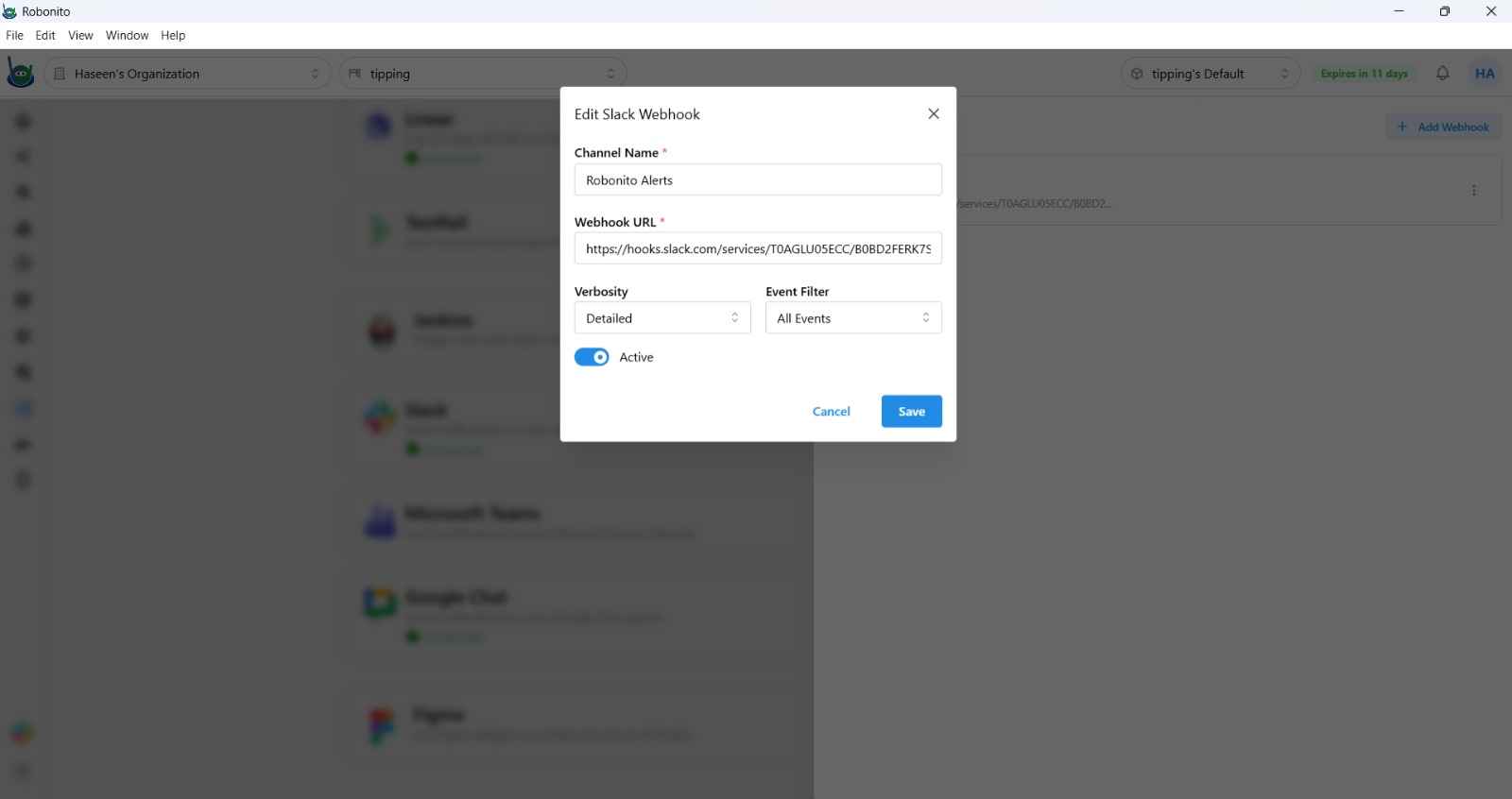
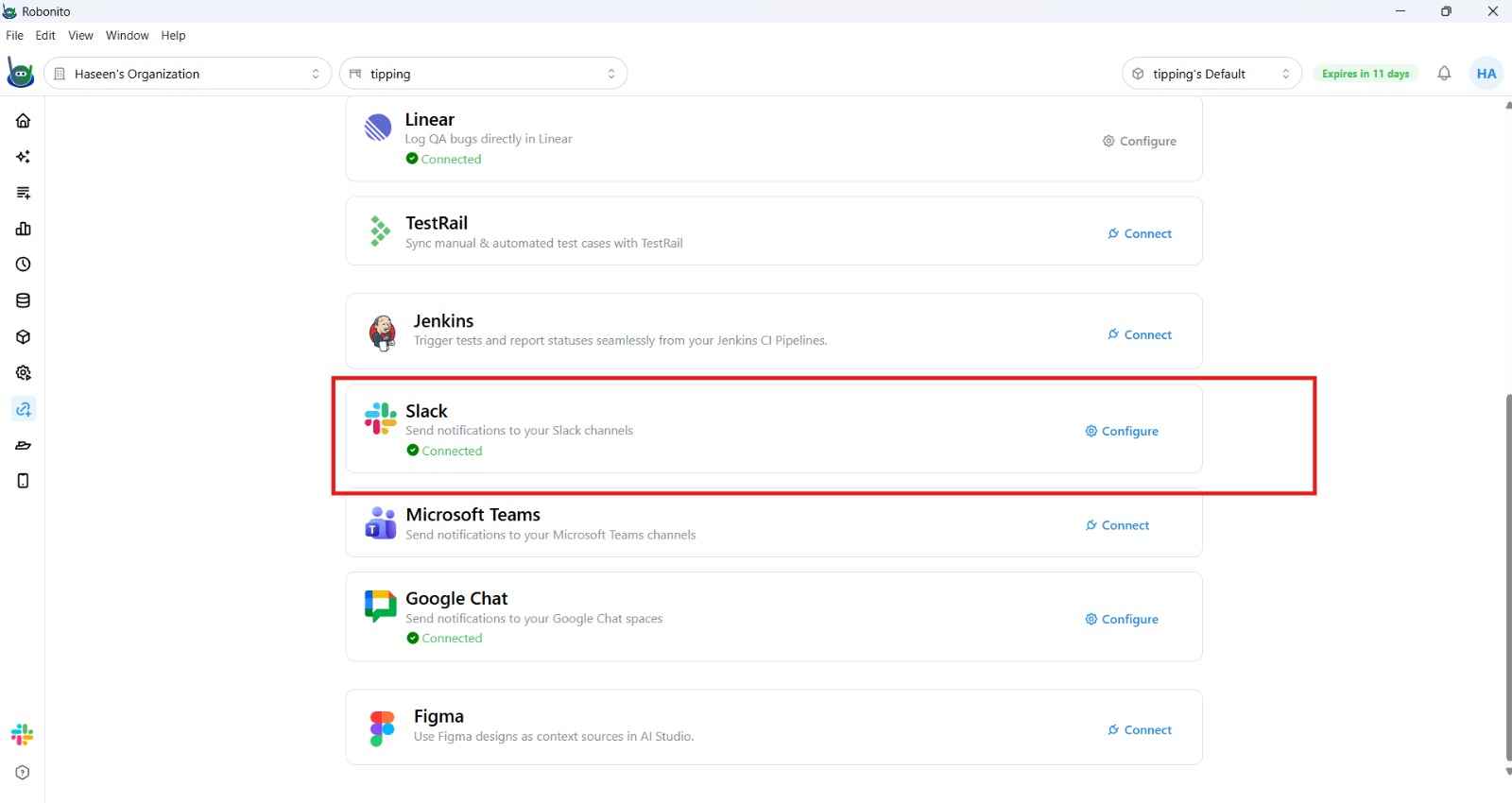
- In Robonito, navigate to Integrations → Slack.
- Paste your webhook URL into the Webhook URL field.
- Click Save.
What Gets Posted
Robonito sends a Slack message after each test suite or scheduled run with:
- Suite name and execution time
- Total tests, passed count, failed count, and pass rate
- Direct links to the full execution report
- A color-coded status bar (green = all pass, red = failures, yellow = mixed)
Failed test cases are listed individually with their error summaries, up to 5 failures per message.
Notification Scope
Slack notifications are sent for:
- Scheduled runs — after every scheduled execution fires
- Suite executions — when you manually execute a full suite
- GitHub Check Runs — after a PR-triggered run completes (if GitHub integration is configured)
Single test case runs do not trigger Slack notifications.
Updating or Disconnecting
To change the webhook URL or disconnect Slack:
- Navigate to Integrations → Slack.
- Update the webhook URL and click Save, or click Disconnect to remove the integration.