Test Case Scheduling
Schedules let you run test cases automatically at a recurring time — daily, weekly, or on a custom cadence — without any manual triggering. This is ideal for nightly regression pipelines, pre-deployment smoke runs, and continuous health monitoring.
Creating a Schedule
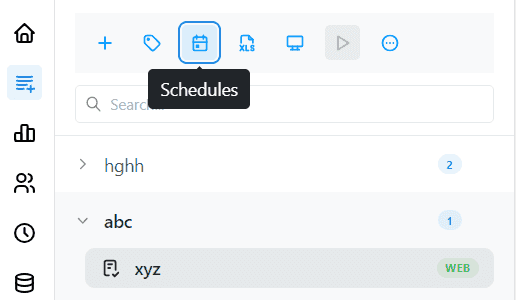
Navigate to the Schedules section in the left sidebar and click New Schedule.
1. Configure Timing
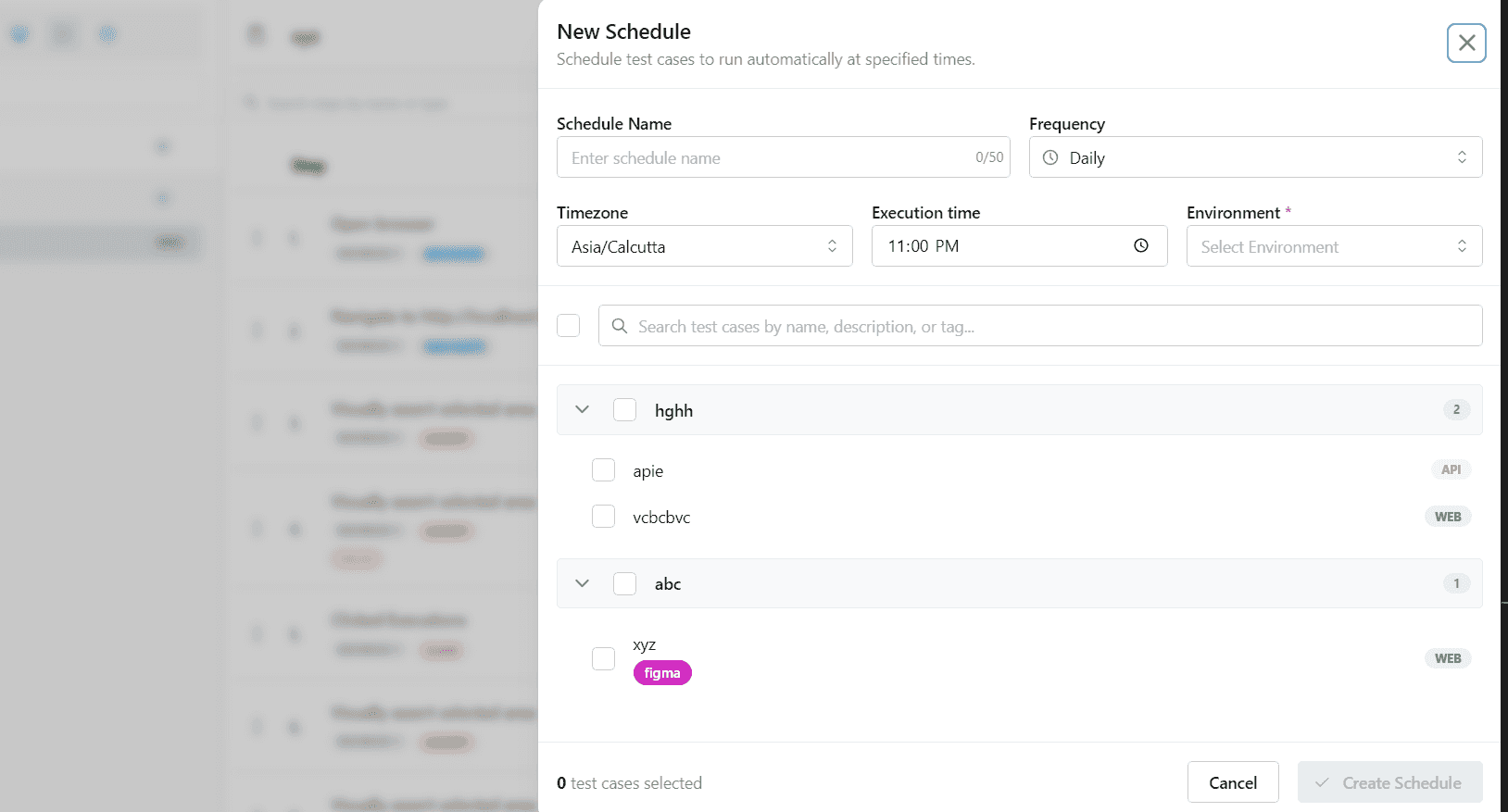
| Field | Description |
|---|---|
| Schedule Name | A recognizable identifier (e.g., Nightly Regression - Staging). Maximum 32 characters. |
| Frequency | How often to run: Daily or Weekly |
| Day | If Weekly: the day of the week to run (Monday–Sunday) |
| Timezone | The timezone the schedule clock runs in. Defaults to your machine's local timezone. |
| Execution Time | The 24-hour time when the schedule fires (e.g., 02:00 for 2 AM) |
| Environment | The workspace environment to execute against (required) |
2. Choose Local or Cloud Execution
- Cloud — test cases execute on Robonito's cloud infrastructure. The Robonito desktop app does not need to be open. Recommended for all scheduled runs.
- Local — test cases execute on your machine. Requires the Robonito desktop app to be running and signed in at the scheduled time. Use only when testing against services that are not accessible from the cloud (e.g.,
localhost, a private intranet).
3. Select Test Cases
Use the search bar to find test cases by name, tag, or description. Check the boxes next to each test you want to include. You can drag to reorder the execution sequence.
Tip: Tag your test cases (e.g.,
nightly,smoke) to make it easy to find and select the right subset when building a schedule. See Tags →.
4. Save
Click Create Schedule. The schedule becomes active immediately and will fire at its next scheduled time.
Managing Schedules
All schedules appear in the Schedules dashboard with their current state.

| Column | Description |
|---|---|
| Name | The schedule identifier |
| Status | ACTIVE — the schedule will fire at the next interval. PAUSED — the clock is frozen. |
| Upcoming Run | Countdown to the next execution |
| Frequency | The configured cadence |
| Actions | Pause/Resume, Edit, or Delete the schedule |
Pausing a Schedule
Click the ⋯ menu next to a schedule and select Pause. The schedule is frozen and will not fire until you click Resume. The countdown timer stops and resumes from the same position.
Editing a Schedule
Click Edit to open the schedule configuration. You can update the name, timing, frequency, timezone, execution environment, or the list of selected test cases.
Deleting a Schedule
Click Delete to permanently remove the schedule. This does not delete the test cases — only the scheduled trigger.
How Scheduled Runs Work
When a scheduled countdown fires:
- Robonito fetches all test cases mapped to that schedule.
- All tests are dispatched in parallel to cloud workers (or sequentially on local, if local mode is selected).
- Each test runs in an isolated browser or device instance.
- Robonito generates a unified Execution Report once all tests complete, visible in the Reports → dashboard with the execution source labeled
SCHEDULE. - If notifications are configured, a summary is delivered to the connected notification channel (Slack, email, etc.).
Viewing Scheduled Run History
Every time a schedule fires, a new entry appears in the Reports dashboard:
- Navigate to Reports in the sidebar.
- Use the Execution Type filter and select
Schedule. - All scheduled runs are listed with their pass/fail status, the schedule name, and the execution timestamp.
Notifications on Schedule Completion
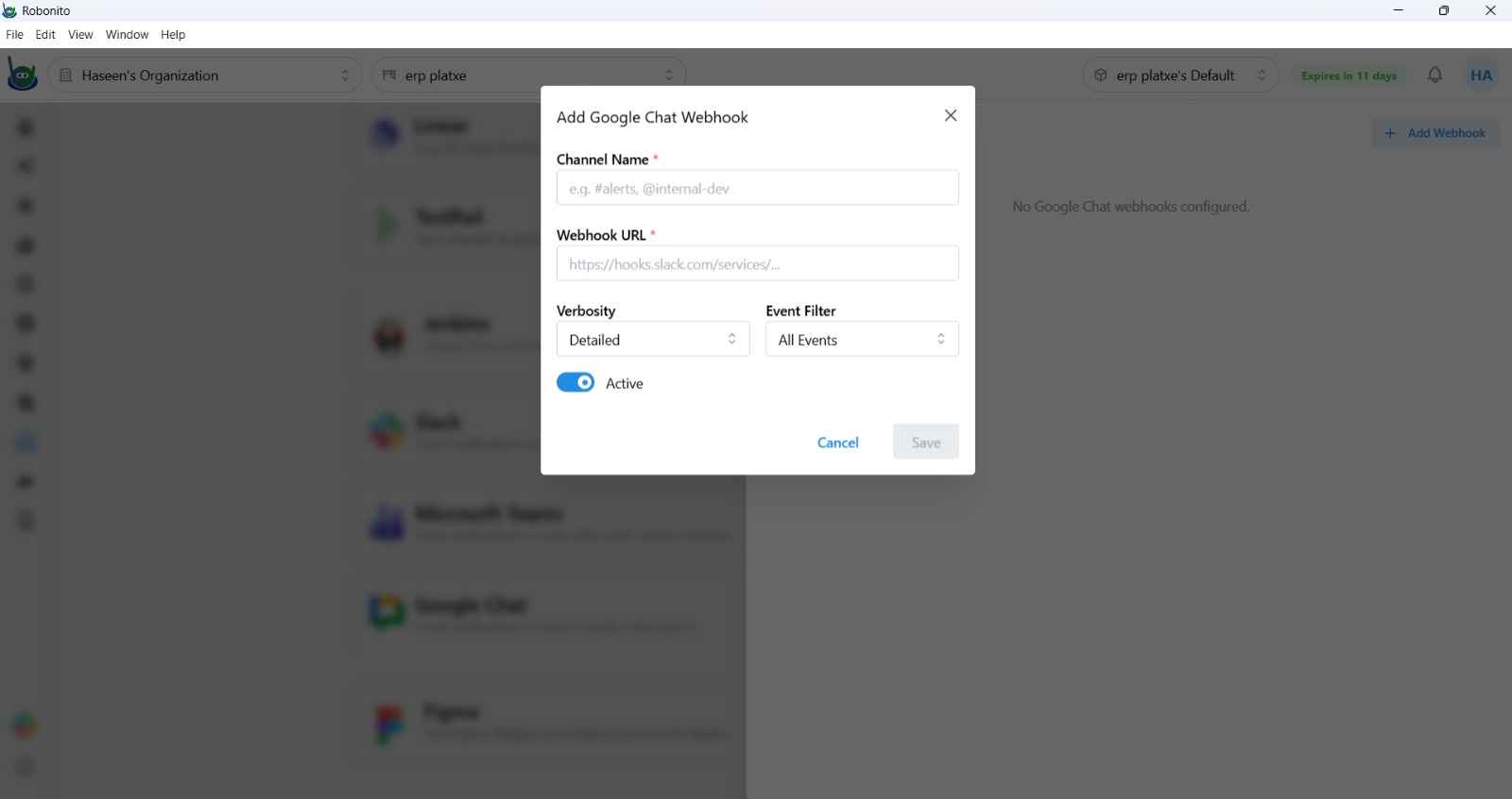
Configure Robonito to send a notification after each scheduled run — whether the suite passed, failed, or had mixed results. Notification channels are configured in your workspace's Integrations settings.
Supported notification channels: Slack →, Microsoft Teams →, Google Chat →
Best Practices
- Use cloud execution for all overnight runs — local execution requires your machine to be on and the app running, which is unreliable for unattended schedules.
- Keep nightly schedules lean — include only your most critical regression tests. Long-running schedules that fail midway are harder to debug.
- Set the timezone explicitly — schedules default to your local timezone at creation, but if your team is distributed, pick a shared reference timezone (e.g., UTC).
- Review the Reports dashboard each morning — scheduled runs generate reports overnight. Check for failures before starting the workday.
- Use Weekly schedules for full regression — run a comprehensive regression once per week (e.g., Sunday night) and a focused smoke suite nightly.