Linear Integration
The Linear integration connects Robonito to your Linear workspace, allowing you to create Linear issues directly from failed test runs without switching context.
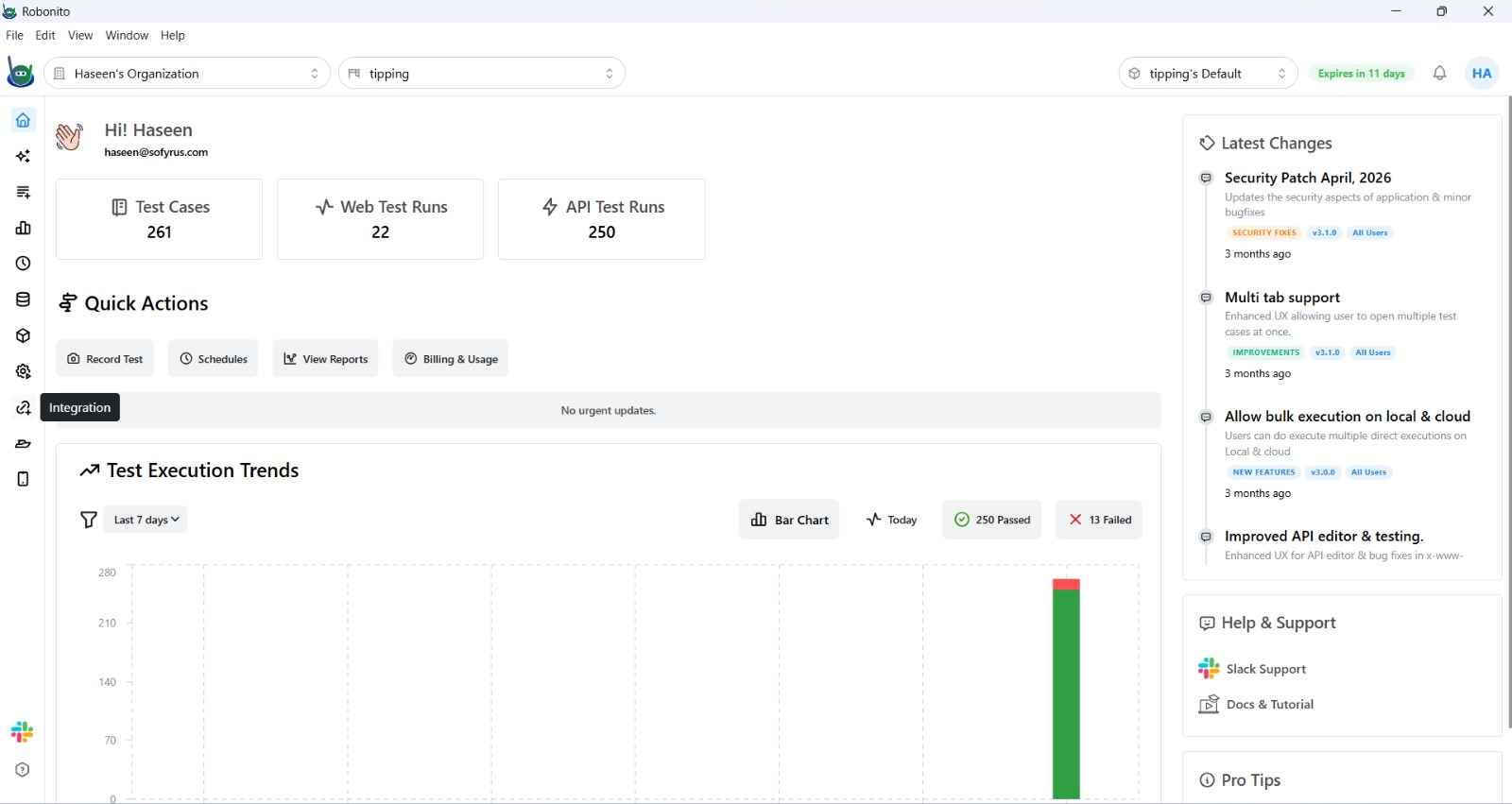
What It Does
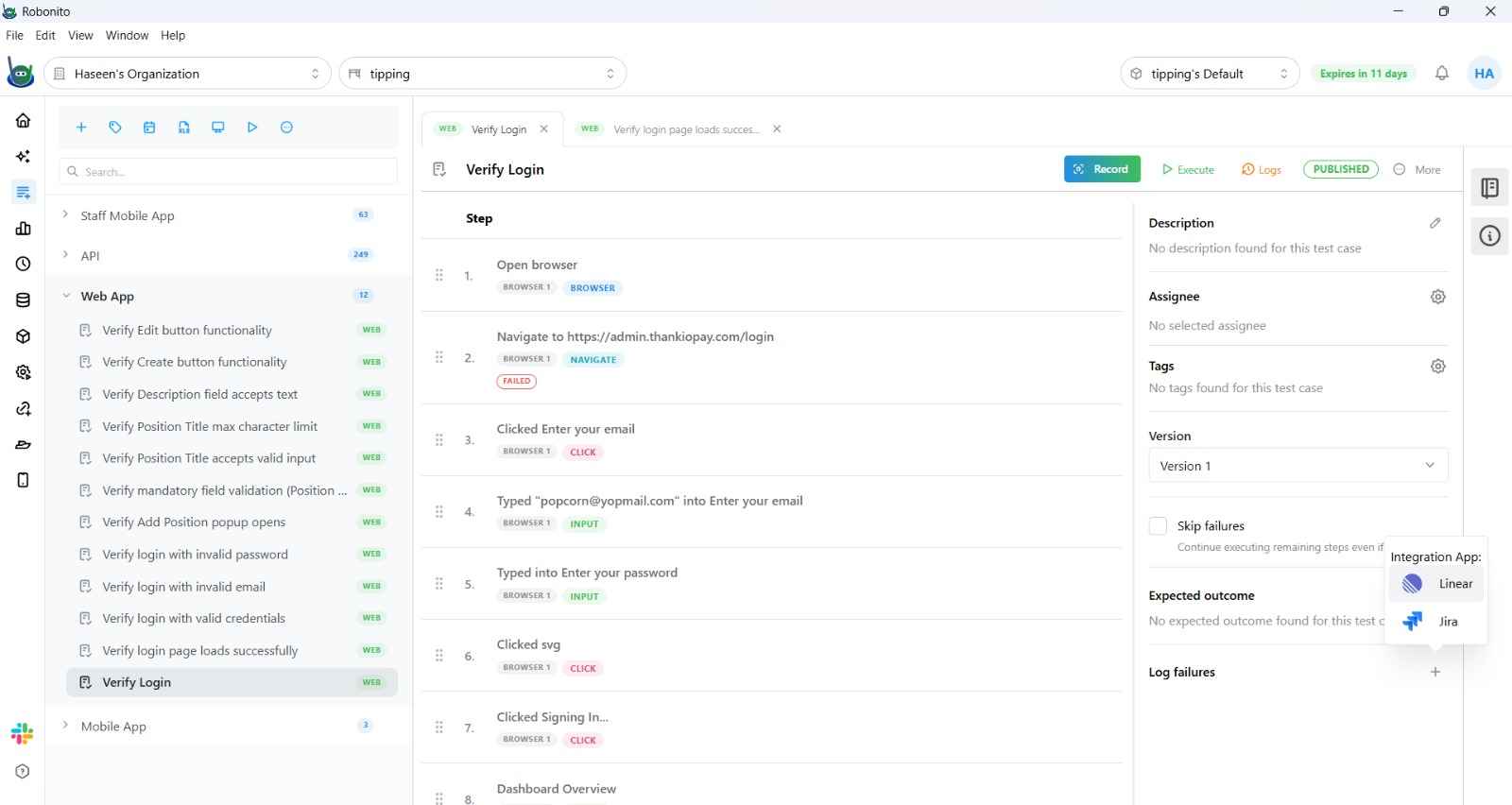
- Create Linear issues from test failures — log bugs discovered during test execution as Linear issues in one click from the execution report.
- Link issues to AI Studio sessions — reference Linear issues as context when running AI Studio, so the agent understands the acceptance criteria or bug description you're testing against.
Connecting Linear
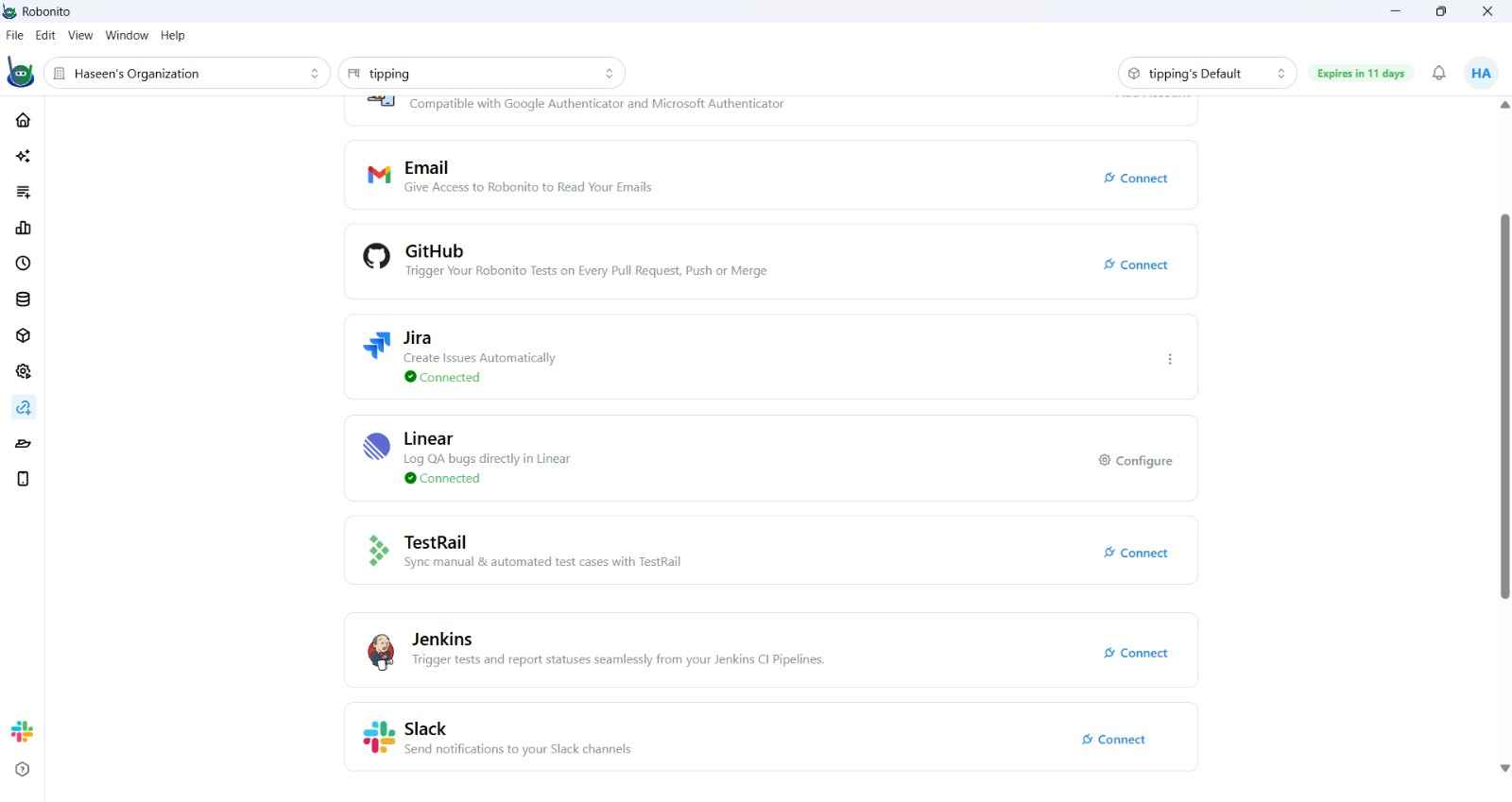
- Navigate to Integrations in the left sidebar.
- Click the Linear tile.
- Click Connect with Linear. A browser window opens requesting OAuth authorization.
- Select the Linear workspace to connect and approve the permissions.
- Return to Robonito — the status updates to Connected.
Configuring Defaults
Set default issue routing to speed up bug logging:
- Open the Linear tile in Integrations.
- Click Edit Defaults.
- Set:
- Team — the Linear team where issues are created by default.
- Assignee — the default issue assignee (e.g., your QA lead).
- Priority — default priority level (Urgent, High, Medium, Low).
- Save.
Creating a Linear Issue from a Failure
When a test run fails:
- Open the Execution Report for the failing test case.
- Click Log Issue (or Create Linear Issue) near the failed step.
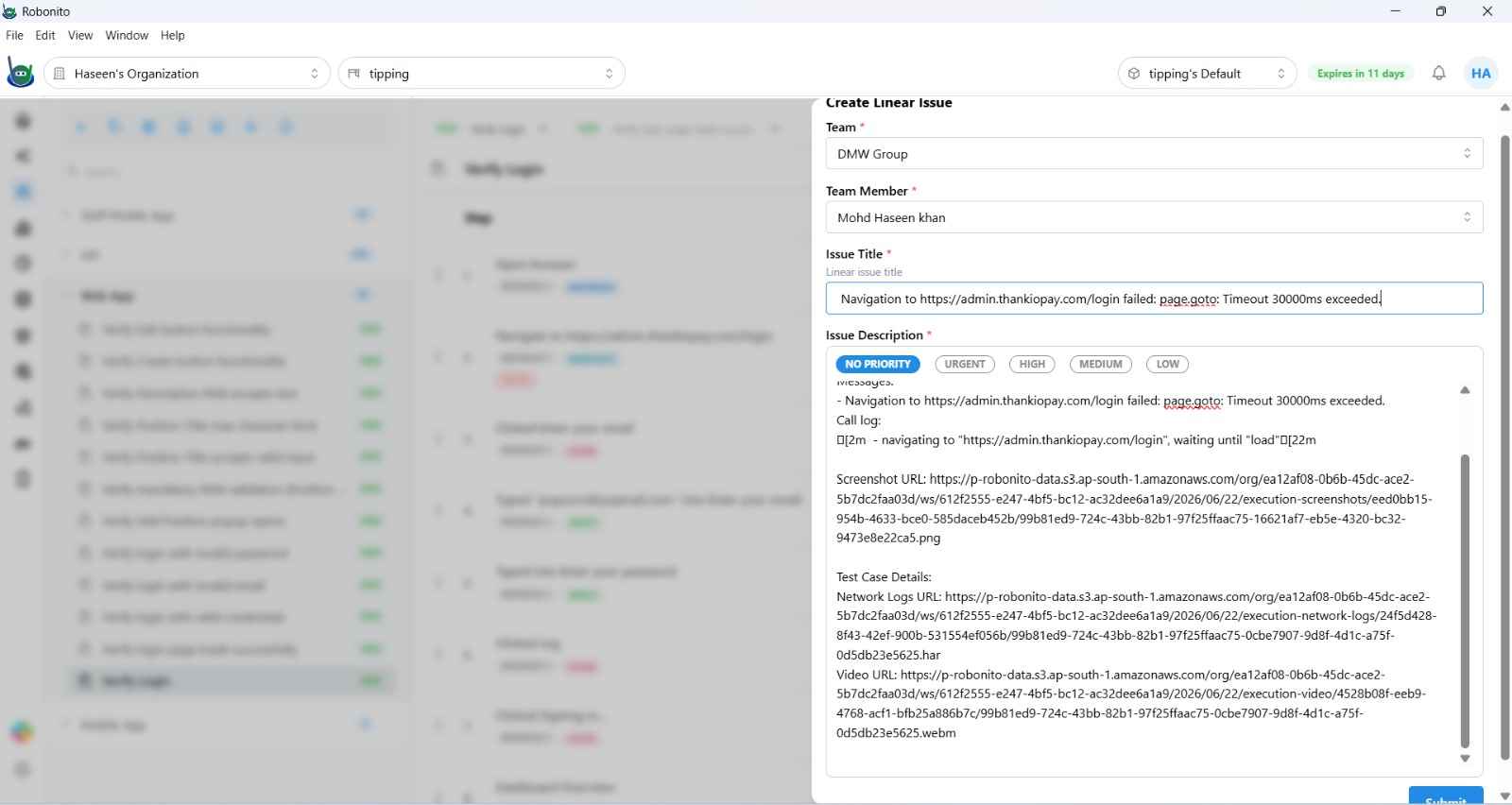
- A pre-filled issue form opens with:
- Title — the test case name and failure description.
- Description — Robonito auto-fills failure logs, DOM state, and screenshot URLs.
- Team and Assignee — pre-filled from your defaults (editable).
- Review and click Create Issue. The issue is created in Linear and a link appears in the execution report.
Using Linear Issues in AI Studio
When using AI Studio, type /linear in the chat input to attach a Linear issue as context. The agent reads the issue title, description, and any acceptance criteria to guide its test generation or exploration.
See AI Studio → for more.
Disconnecting Linear
Open the Linear tile in Integrations and click Disconnect. Existing issues in Linear are unaffected.