Web Execution Flow
Executing a web test in Robonito is a seamless process from initiation to result analysis. This guide walks you through the entire lifecycle of a test execution.
1. Initiating Execution
To start a test run, navigate to your desired test case and click the primary Execute button located in the top-right toolbar. This initiates the automation engine and prepares the environment for execution.
2. Execution Configuration
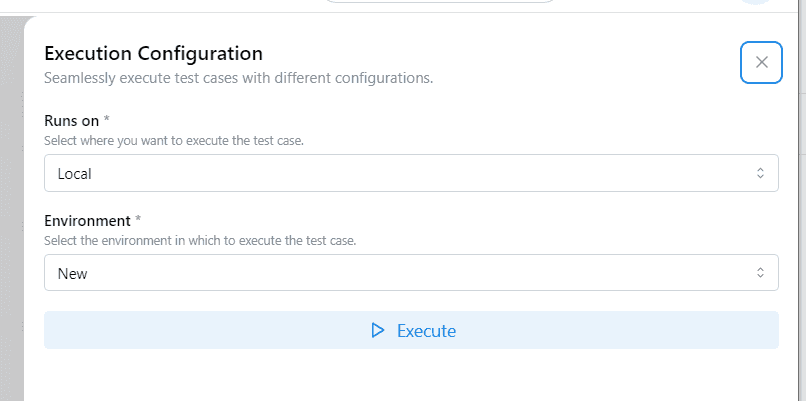
Before the test begins, the Execution Configuration dialog appears. This allows you to customize where and how your test case should run:
- Runs on: Select the execution infrastructure.
- Local: Runs on your current machine using the native Robonito app.
- Cloud: Runs on Robonito's scalable managed infrastructure.
- Environment: Choose the environment profile (e.g.,
Staging,Production, orNew) to apply variables and secrets to the run.
Click the Execute button at the bottom of the dialog to confirm and start the run.
3. Monitoring Test Results
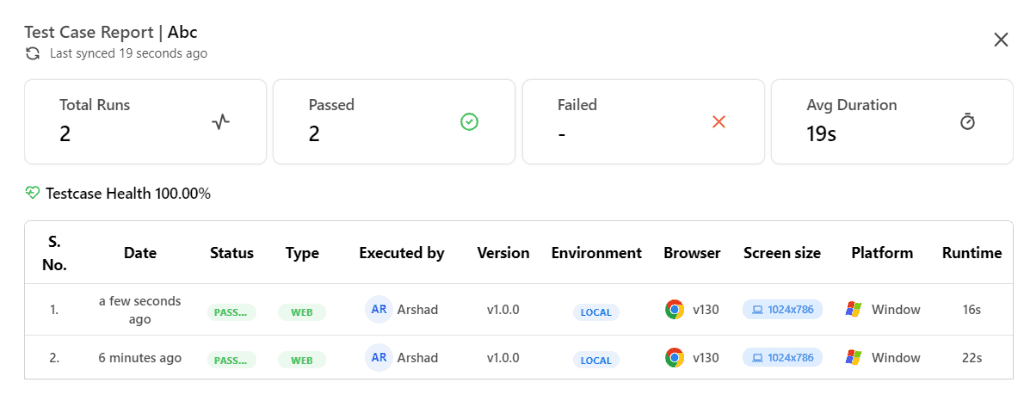
Upon completion, you are presented with a comprehensive Test Case Report. This dashboard gives you immediate visibility into the success and performance of your test.
- Execution Overview: View aggregate stats including Total Runs, Passed/Failed counts, and Average Duration.
- Testcase Health: A real-time reliability score based on the consistency of recent executions.
- Run History: A detailed table listing every execution, including:
- Timestamp: When the run occurred.
- Environment & Browser: Detailed metadata (e.g., Chrome v130).
- Performance: The runtime duration for each individual execution.
4. Analyzing Execution Logs
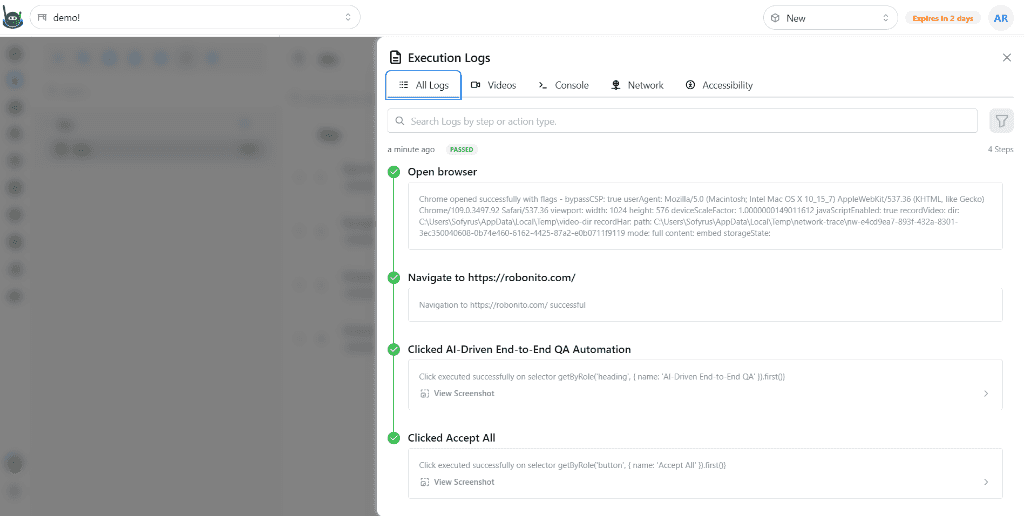
For granular debugging, the Execution Logs provide a step-by-step breakdown of the automation sequence.
- Action Timeline: Every interaction—such as
Open browser,Navigate, orClick—is logged sequentially with a success/failure status. - Technical Insights: Each step contains detailed information about selectors used and the results returned by the AI engine.
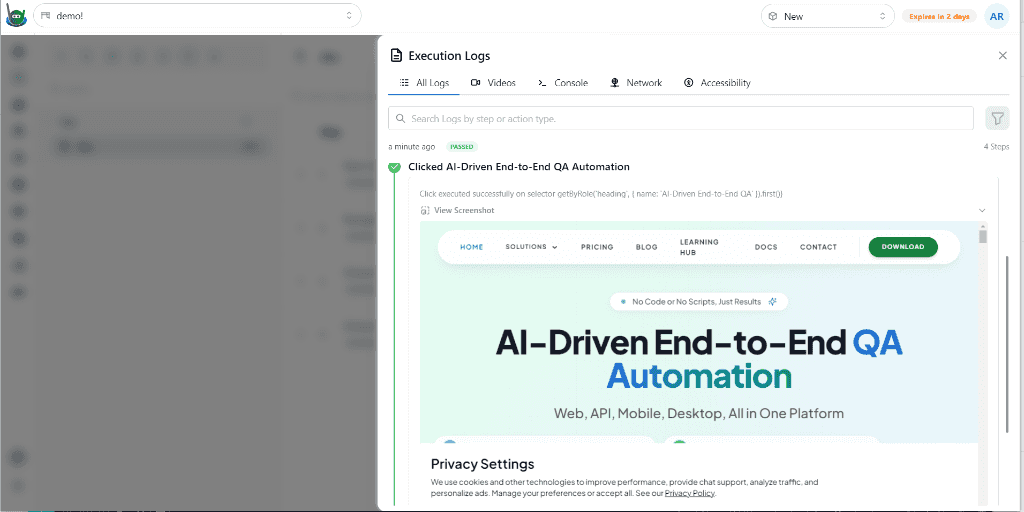
- Visual Logs: Click View Screenshot on any log entry to see a visual snapshot of the application at that specific moment in the test. This is essential for identifying visual regressions or layout shifts.